Schedule
A schedule organizes appointments by time and date. Use the Court Management Scheduling module to set up appointments, edit appointment properties, or delete appointments. The Schedule module allows you to view appointments by day, week, or month.
Getting started
Before you start scheduling appointments, you'll need to set up a
Scheduling code: Use Court Management > Organization > Codes to add a code for scheduling appointments. Example: DATE
Schedule type: Add at least one schedule type to Court Management > Organization > Schedule Type. Example: Open Court, Crimes
Room: This is recommended but not required to schedule appointments. Use Court Management > Organization > Rooms. Example: Court Room 1, Court Room 2, Small Conference Room, Large Conference Room
User: Add at least one user to System Management > Security > Setup/Modify User Rights.
Case: Set up and save a case before you schedule an appointment.
Scheduling an appointment
When you want to schedule an appointment, the Schedule Appointment dialog box will display. It looks like this...
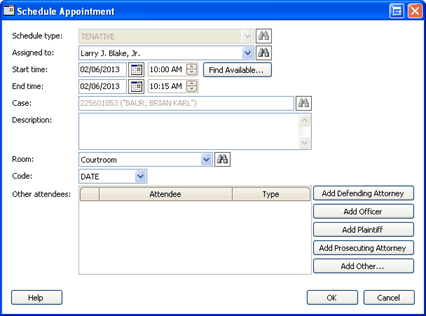
Schedule Appointment
Use the options on the Schedule Appointment dialog box to fill in the appointment time, date, location, and so on. Each field shown on the form is listed in this help topic in alphabetical order. Use the additional information provided below to fill in the requested information.
Warning! You can schedule concurrent appointments for the same user.
How do I add an appointment In the Scheduling view?
Launch the Schedule an Appointment. Double-click anywhere on the schedule.
Use options in the Appointment menu. Right-click anywhere on the schedule and select New Appointment or Add Appointment from the menu.

Double-click to view the appointment menu
How do I add an appointment In Setup New Case?
Use Court Management > Cases > Setup New Case to add a new case. After you fill in the case and defendant information, the cursor moves to the Offense tab. If the scheduling code is set as the default, the scheduling code will display in the Code field. If the scheduling code is not the default, you need to enter a code in the Code field. When you enter the scheduling code, press the Enter key to display the Schedule Appointment dialog.
Click the Appointments
 button
to manually add an appointment to a case.
button
to manually add an appointment to a case.
How many appointments can I add to a time slot?
There is no limit to the number of appointments that you can schedule for the same time slot. To add another appointment to a filled time slot, right-click on the time slot to select it. Then, select New Appointment from the menu. Fill in the Appointments form as usual. The schedule will display ****Multiple Appointments***.
Recording an appointment disposition
Use an appointment disposition to record the outcome of the appointment. Appointment outcomes may include:
Appeared: The defendant that shows up for the appointment.
FTA (Failed to Appear): The defendant fails to show up for the appointment.
Rescheduled: A new date or time was assigned.
Canceled: An appointment was deleted. The defendant is not scheduled for an appointment and a new appointment was not assigned.
How do I record an appointment disposition?
1. Open Connect Court Management > Cases > Enter Dispositions.
2.
Click Appointments .
3. When the Appointments for Case Number form displays, right-click on the appointment status (in the Status column) to display the appointment disposition menu.
4. Select the appointment disposition.
5. Click OK.
Rescheduling an appointment
You can reschedule an appointment using Modify Existing Case or View Schedule.
Viewing appointments
You can view the appointments set for a case in Setup New Cases or Modify Existing Cases on the Schedule tab. Or, you can view the appointments that have been scheduled for a judge or user with Schedule > View Schedule.
Using Setup New/Modify Existing Cases...
Click
Appointments
to view the appointments created for the case.
Using View Schedule...
Double-click an appointment to view the appointment detail.
Changing properties on an existing appointment
Use Edit Appointment to change the appointment properties.
How do I change the date/time/location?
Open the Appointments view (click Appointments in Modify an Existing Case, or open Court Management > Schedule > View Schedule). Next, right-click on the appointment. Use the options in the pop-up menu to select Edit Appointment.
How do I change the schedule type or case?
Delete the appointment. Then, add a new appointment with the correct schedule type/case.
Deleting an appointment
Use Delete an Appointment to remove an appointment from the schedule.
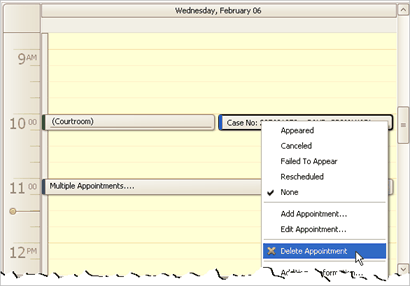
Right-click an appointment and then select Delete Appointment
How do I delete an appointment?
Open the Appointments view (click Appointments in Modify an Existing Case, or open Court Management > Schedule > View Schedule). Next, right click on the appointment. Use the options in the pop-up menu to select Delete Appointment.
Options
Add defending attorney
The defending attorney represents a defendant during trial. Use Add Defending Attorney to add the name of the defending attorney to the list of Other Attendees.
Add officer
An officer is an individual who is charged with police duties. Use Add Officer to add the name of the arresting officer to the list of Other Attendees.
Add plaintiff
A plaintiff is the person or organization that is initiating a case. Use Add Plaintiff to add the name of the plaintiff to the list of Other Attendees.
Add prosecuting attorney
The prosecuting attorney represents the party filing the complaint. Use Add Prosecuting Attorney to add the name of the prosecuting attorney to the list of Other Attendees.
Add other
Other refers to additional individuals that you wish to add to the list of attendees. Use Add Other to add another defending attorney, juror, officer, plaintiff, or prosecuting attorney to the list of Other Attendees.
Additional Information panel
The Additional Information panel displays the field information from the case that would normally not be included on the View Schedule form. Use Options (F12) to add or remove fields from the panel as well as change the field display order.
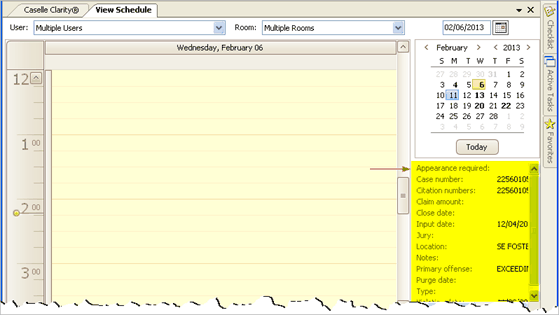
Additional Information
How do I add/remove fields from the Appearance Required panel?
Click Options (F12). The Schedule Options form displays the fields that will appear in the Additional Information panel in the display order. Click Select. Use the Selection form to move the fields that you wish to include on the screen to the Selected Items list. Then, click Move Up/Down to change the field display order.
Assigned to
Assign the appointment to a user or judge. The Assigned To drop-down list displays a list of users for the selected schedule type.
Appointments button
Click
Appointments
to launch the Schedule View. The Appointments button is available in any
of the Case Entry screens.
Calendar
The calendar displays a month at a time. Click on a date to show the appointments on the selected date. Use the controls at the top to move to a different month or year. Or, use the Today button to show the current date.
Legend:
Black, normal: Date is not included in the schedule type.
Black, bold: Available appointments exist.
Red, bold: All available appointments are filled.
Case
Use Case to select a case number.
Code
A code is a group or category that defines the transaction behavior. Use the Code drop-down list to select a scheduling code.
What do you want to do?
I want to use the default code. The default code is the code that is displayed in the Code field.
I want to enter a different code. Click on the Code field, then enter a different code.
I want to change the default code. Click Options (F12). Use the Default Code drop-down list to select the code that will be displayed as the default value in the Code field.
Description
A description is a word or phrase that describes the character or features of the appointment. The default description in the Schedule View is the Case No: [##########] -- Last Name, First Name.
Do you want to use the default description?
Yes, I want to use the default description. Continue to the next field.
No, I want to use a different description. Click on the Description field, and then type in a new description (up to 40 characters).
Find available
Use Find Available to locate the next open appointment for the selected judge and schedule type.
Click
Find Available  .
.
Use the Find Available Appointment Slots to locate the open appointments. Dates with open appointments are green. While dates where all available appointments have been filled are red.
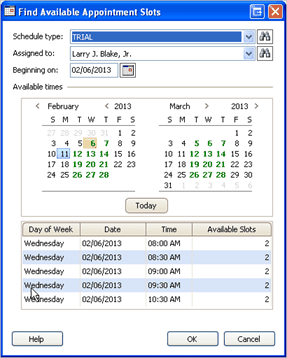
Find Available Appointment Slots
Click on a date to show the available slots in the grid, at the bottom of the dialog. Double-click a date from the grid to select it. The date and time for the selected appointment displays in the Start/End Time field.
Go to date
Use the Go to Date field to display the appointments for a specific MM/DD/YYYY.

Calendar
New all day event
Usually an event lasts for a period of minutes or hours on a given date. In contrast, an All Day Event lasts for 24 hours or longer.
Other attendees
Other Attendees is a list that displays the individuals that will attend the scheduled appointment. Use the buttons to the right to add the primary defending attorney, officer, plaintiff, and prosecuting attorney. Use Add Other to include jurors and add another defending attorney, officer, plaintiff, and prosecuting attorney.
Room
A room refers to the space or location where the appointment will take place. There are two instances in the Schedule View where you will select a room. The first instance occurs when you set up a new appointment, you will assign a room. And the second instance happens when you use the Schedule View to view appointments by the assigned room.
When you add a new appointment, what do you want to do?
I want to select an existing room. Use the Room drop-down list to select the name of a room.
Help me find a room. Click Search to look up a room name.
I want to add a new room. Use Court Management > Organization > Rooms to add a new room.
When you view existing appointments, what do you want to do?
I want to view appointments for a single room. On the View Schedule form (Court Management > Schedule > View Schedule), use the Room drop-down list to select a room name. Only appointments that are assigned to the selected room will display on the screen.
I want to view appointments for multiple rooms. On the View Schedule form (Court Management > Schedule > View Schedule), use the Room drop-down list to select Multiple Rooms. All appointments that have been assigned to a room will display on the screen.
Schedule type
A schedule organizes appointments by time and date. You can create a separate schedule, or schedule type, for different appointment categories.
What do you want to do?
I want to select an existing schedule type. Use the Schedule Type drop-down list to select an option.
Help me find a schedule type. Click Search to look up a schedule type.
I want to add a new schedule type. Use Court Management > Organization > Schedule Type. Then exit the Schedule View and relaunch it to update the options in the Schedule Type list.
Start/end time
The start/end time is the date and time that the routine will use to create the appointment. Use the start time field to enter the date and time when the appointment begins. Then, use the end time field to enter the date and time when the appointment ends.
Status
The status is the state or condition of the defendant with regard to the appointment. As a precaution, the routine does not allow changes to the status when the User is set to select Multiple Users.
Status types:
Appeared: The defendant was present for the appointment.
Canceled: The appointment is not needed.
Failed to Appear: A defendant was scheduled to appear before the court, but did not go to court at the scheduled date and time.
Rescheduled: The appointment is rescheduled for a different date and time.
None. The routine assigns the status none to pending appointments.
Today
Click Today to show the appointments on the current date.
User
A user is a person who will log on to use this application. Use the User list to display appointments for a given user, or display appointments for multiple users. The user name and color block identifies each appointment.
Use Color to assign a color to the scheduled appointment. A solid color bar displays to the left of the appointment text.

Color coding appointment by user
The color swatch next to the Color Wheel is the color assigned to the schedule.

Color selection
Click
the Color Wheel  to change the assigned color.
Setting default schedule letter/forms report definition
Assign a custom letter or form, or select a Caselle master, as the default letter or form that will print when you print an appointment.
Do this...
1. Open Connect Court Management > Schedule > View Schedule.
2. Click Options (F12).
3. Select the default report definition to use when you print a case from a scheduled appointment.
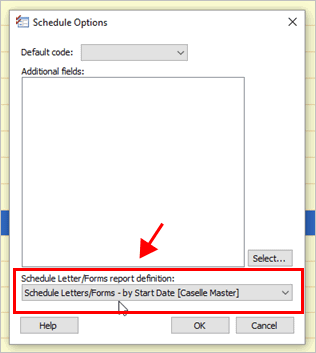
Schedule Letter/Forms Report Definition field
4. Click OK.
The default report/form definition is saved.
2019.05, 2019Mar11
Printing a case from schedule
Select an appointment and then click the Print button on the toolbar to send the case to the printer.
2019.05, 2019Mar11
Copyright © 2025 Caselle, Incorporated. All rights reserved.