How do I batch close cases?
Use Batch Close Cases to update the case properties for a group of cases with the following information:
-
Add the closing transaction to the case
-
Create automatic forfeitures
Running this routine will automatically close a case when:
-
the final payment is received and the case is ready to close, and
-
the defendant has not been sentenced and a payment is received that matches the offense amount. In other words, an automatic forfeiture.
Important! When a case is closed, users cannot add, edit, or remove information from the closed case.
Watch a webinar
Learn how to close a case one by one and use batch close cases to close a group of cases. [MP4]
Batch closing cases
Update the case properties for a group of cases with the following information: add the closing transaction to the case, and create automatic forfeitures.
Do this...
1. Open Connect Court Management > Cases > Batch Close Cases.
2. Fill in the options on the form. Use the sections in this help topic to fill in each field. The fields are listed in alphabetical order.
The grid displays the case numbers for the cases that have been selected using the current selection criteria. An empty grid means there are no matches.
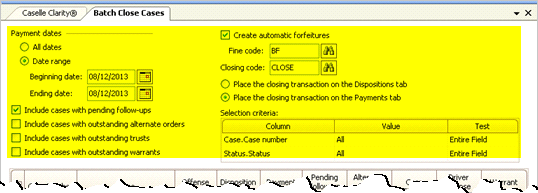
3. Use the transaction grid to review the cases that have been selected using the options that you have selected.
4. What do you want to do?
-
I want to close the case. Click to select the checkbox located next to the case number.
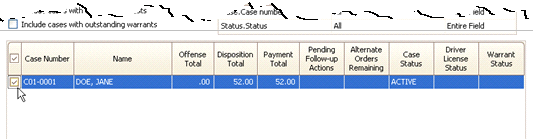
Note: Checking the checkbox in the heading row will select all cases.
-
I do NOT want to close the case. Click to deselect the checkbox located next to the case number.
5. Click GO (CTRL+G).
The cases are closed.
Options
Closing code
A closing code is a code that prevents users from adding, editing, or removing information from a case and assigns the case a final status. The Code Type on a closing code must be Close. Only codes with the code type set to close will close a case.
Create automatic forfeitures
An automatic forfeiture is the loss of property or money because of a breach of a legal obligation. Use Create Automatic Forfeiture to forfeit payments made by a defendant when an appearance by the defendant is not required and the defendant has not been to court or entered a plea.
Fine code
A fine is a sum imposed as punishment for an offense. A fine code is the code that identifies transactions that record a fine.
Include cases with outstanding alternate orders
An outstanding alternate order is an alternate order that has not yet been completed.
Include cases with outstanding trusts
An outstanding trust is a trust that has not yet been disposed. A trust is an amount that is left in the care or guardianship of another.
Include cases with outstanding warrants
An outstanding warrant is a warrant that has not yet been disposed. A warrant is a court order that directs a law enforcement officer to arrest and bring a person before the judge.
Include cases with pending follow-ups
A follow-up action that is pending is a follow-up action that is waiting to be completed.
Payment dates
A payment date is the date the system uses to record the receipt of a payment. Use All Dates to include cases with final payments without regard to the transaction date. Use Date Range to select only cases with final payments that occur within the selected date range.
Note: Selecting All Dates will require more time to process.
Place the closing transaction on the Dispositions/Payments tab
A closing transaction is an entry that records the closing code on a case. You can choose the location in the case to add the closing transaction. The location is a matter of personal preference. Saving the closing transaction on either the Dispositions tab or the Payments tab will prevent users from adding, editing, or removing information from the case.
Selection criteria
In Caselle, the Selection Criteria allows you to choose which information to include in the transaction grid. On the Batch Close Case routine, the selection criteria includes all of the options located above the transaction grid.
Transaction grid
The transaction grid displays the case numbers that have been selected based on the selection criteria. Use the Transaction Grid to select the case numbers to include/exclude from the routine.
Copyright © 2025 Caselle, Incorporated. All rights reserved.