Approval List
Reports
Print a list of items that are waiting for approval. If your organization is using an approval process to approve complaints, violations, building permits, and planing and zoning projects, you can print an approval list to see which items are waiting for approval and who is assigned as the approver. You can sort items by approval status (active, approved, pending, scheduled, and denied) and print the approval list for an approval group or user. To learn more about approvals, see Approvals Overview.

Use the Approval List - Active Approvals [Caselle Master] to view items that are assigned to an approval process. You change the master report to create reports for pending approvals, scheduled approvals, denied approvals, and approved approvals.
Printing the Approval List
1. Open Connect Community Development > Reports > Approval List.
2. Select a report title.
3. Set up the report options.
Include approvals for permits/projects
Assigned to approval group or user
4. Click Print (Ctrl+P).
Including approvals for permits and projects
Set up the report to print approvals for permits, projects, or both permits and projects.

Include approvals for permits/projects checkbox
Selecting approval status
Filter the report by approval status. The approval status changes as an approval item moves through an approval process.
-
Active. The item is moving through an approval process.
-
Approved. The item is approved and done with the approval process.
-
Pending. The item is flagged for an approval process and may be waiting to be assigned to an approver.
-
Scheduled. The item is working through an approval process and the item is scheduled for inspection.
-
Denied. The item was denied approval.
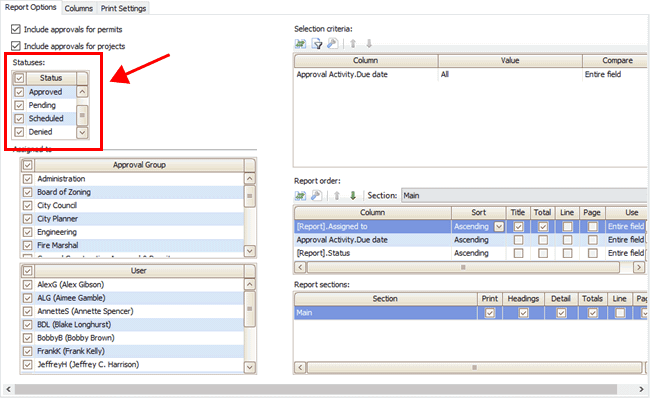
Statuses
Selecting approvals by approval group or user
Filter the report by approval group or approver (user). An approval group is a group of users who have been assigned to an approval process. Some approval steps may be assigned for review by a specific user or you may want to find out which items are waiting for approval by a user.
The user list will show the names of all of the users who have been set up as an approver. To review a user's settings, open Organization > Users and review the if the Assign to Approvals checkbox is selected.

Assigned to
Copyright © 2020 Caselle, Incorporated. All rights reserved.