How do I change the approval status to pending?
Replace the approval status on all of the approval steps.
Manually change the approval status on all of the approval steps to pending. Changing the approval steps to pending will assign the permit to the first step in the approval process.
Changing the more than one approval status to pending
1. Open Connect Community Development > Permits > Modify Existing Permits.
2. Use the Permit field to enter the permit number. Press Enter.
3. Click the Approvals tab.
4. Click Update Previous Approvals.
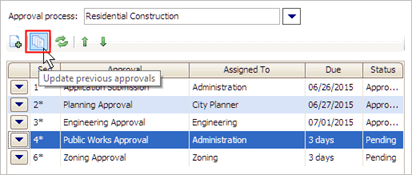
Update Previous Approvals button
The Update Previous Approvals form displays.
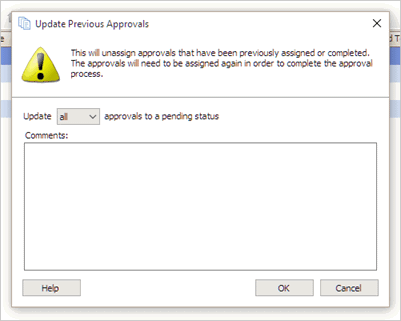
Update Previous Approvals
Warning! Running this routine will unassign approvals that have been assigned or completed. You'll need to reassign the approvals (add an Assigned Date) so the permit can complete the approval process.
4. Select Update [active/all] Approvals to a Pending Status.
Use All to change all of the approval steps to pending status. Use Active to change only the approval steps that are set to active by an approver to the pending status.
What do you want to do?
Change the status on ALL approval steps. Use the drop-down menu to select All.
Change the status only on active approval steps. Use the drop-down menu to select Active.
5. Enter a Comment.
Use the Comment field to enter an explanation
for the action.
6. Click OK.
The status on the approval steps assigned to the permit is pending.
Updated 2018Dec05