How do I adjust fee amounts on a permit?
Permits
Use the options on the Fees tab in Modify Existing Permits to delete a fee, recalculate a fee, or update a fee amount.
Watch a video
2019.08 or later adds Manual as a unit of measure. When you manually override a fee amount, Manual will be displayed as the unit of measure. Watch a video (01m07s).
Deleting a fee from a permit
Remove a fee and recalculate the permit amount.
Do this...
1. Open Connect Community Development > Permits > Modify Existing Permits.
2. Look up a permit and then press Enter.
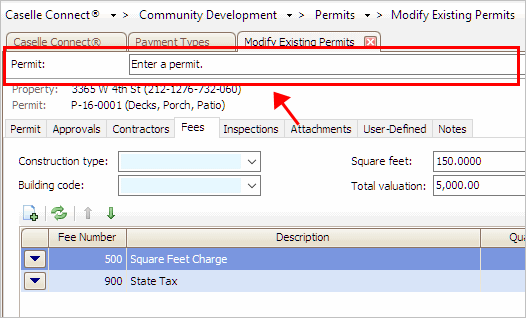
Look up bar
3. Click to select the Fees tab.
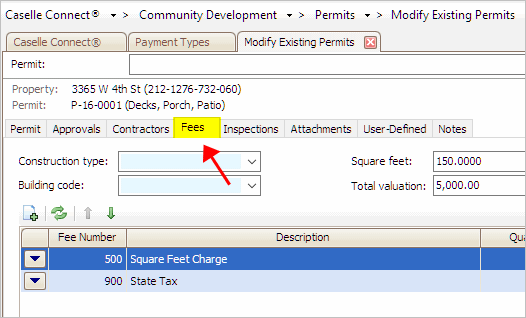
Fees tab
The fees on the permit display in the grid.

Fees grid
4. Find the fee in the grid and then click the Dynamic button that's next to it.
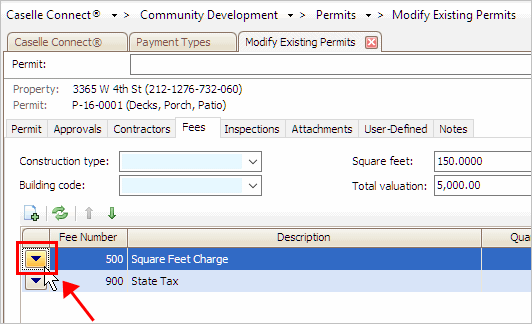
Dynamic button
5. Select Delete Fee.

Delete Fee
The fee is deleted from the permit.
Updated 20Mar2018
Recalculating a fee on a permit
If the fee amount or quantity is updated, use recalculate to use the updated fee amount and quantity to calculate a new fee balance. For example, City XYZ sets up a fee. Later that year, City XYZ changes the fee amount after the permit has already been created. City XYZ uses the option to recalculate a fee to update the fee amount on the permit to show the new fee amount.
Do this...
1. Open Connect Community Development > Permits > Modify Existing Permits.
2. Look up a permit and then press Enter.
Look up bar
3. Click to select the Fees tab.
Fees tab
The fees on the permit display in the grid.
Fees grid
4. Find the fee in the grid and then click the Dynamic button that's next to it.
Dynamic button
5. Select Recalculate Fee.
Only fees that allow you to recalculate the fee will have the menu option to Recalculate Fee.
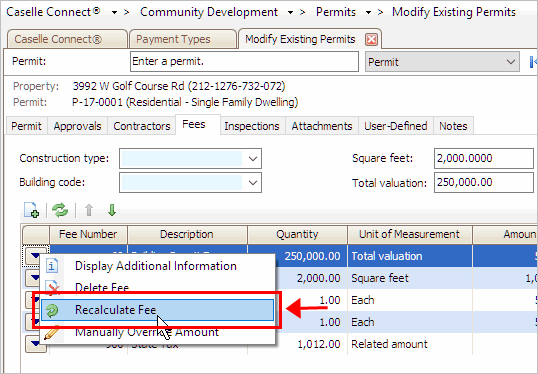
Recalculate Fee
If the fee has applied payments, you will be prompted to unapply the applied payments to recalculate the fee. After the fee is recalculated you can apply the unapplied payments to the fee. (See the help topic titled How do I apply payments to a permit?)
The fee is recalculated. If you unapplied payments, you will need to apply the unapplied payments to the fee, see the help topic titled How do I apply payments to a permit?
Updated 20Mar2018
Manually overriding a fee amount on a permit
You can replace the fee amount on a permit with a new fee amount. You do not need to use the option to "recalculate fee" when you're done. For example, City XYZ has adjusted a fee amount, and City XYZ wants to replace the value with the original fee amount.
Note: When you run the manual override option, you will lose the calculation notes that are stored in the Fee Detail. (Click the Dynamic button and then select Additional Information to show the Fee Detail.)
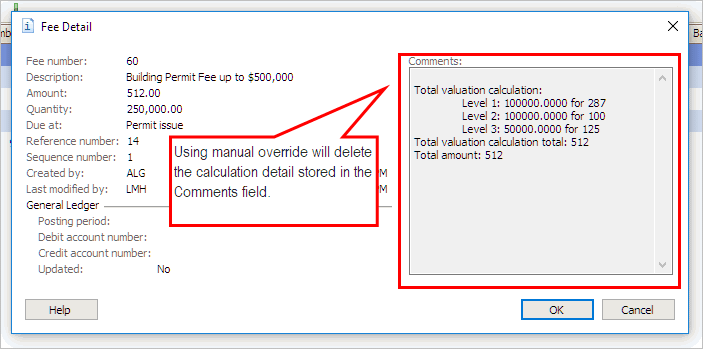
Comments field in Fee Detail
Do this...
1. Open Connect Community Development > Permits > Modify Existing Permits.
2. Look up a permit and then press Enter.
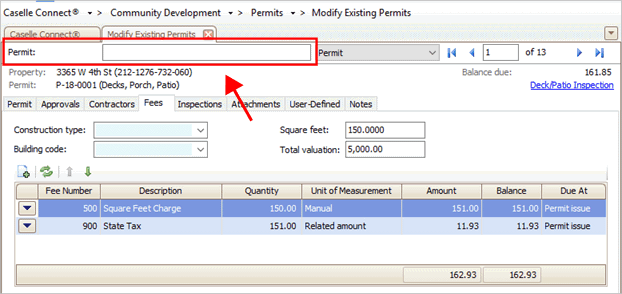
Look up bar
3. Click to select the Fees tab.
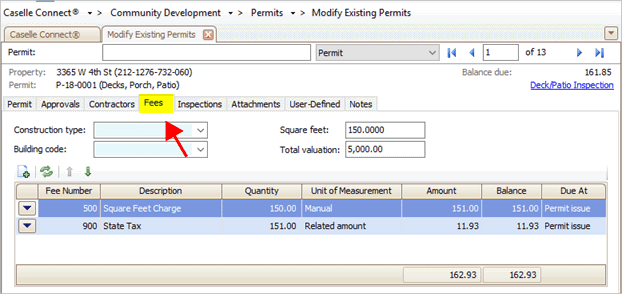
Fees tab
The fees on the permit display in the grid.
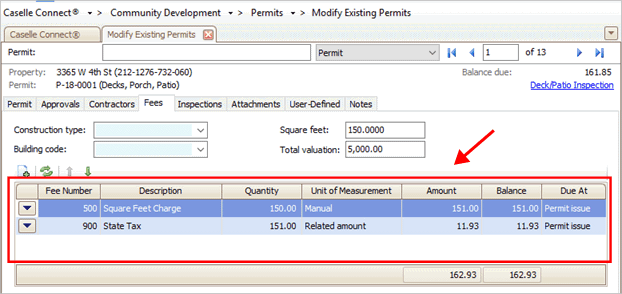
Fees grid
4.
Find the fee in the grid and then click the Dynamic button  that's next to it.
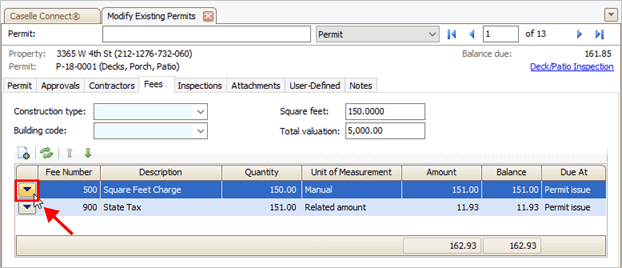
Dynamic button
5. Select Manually Override Amount.
Only fees that allow you to manually override the amount will have the menu option to Manually Override Amount.
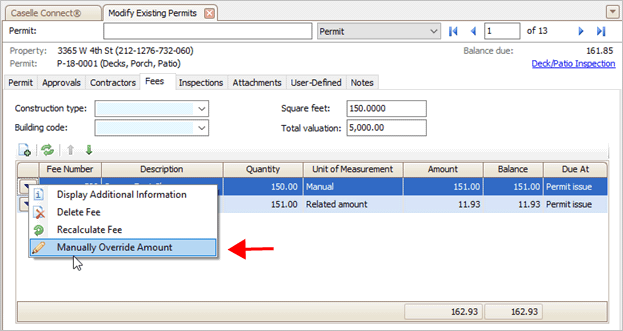
Manually Override Amount
If the fee has applied payments, you will be prompted to unapply the applied payments. After the fee is recalculated you can apply the unapplied payments to the fee. (See the help topic titled How do I apply payments to a permit?)
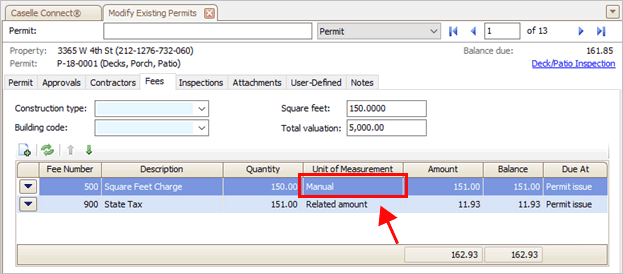
Showing "Manual" as the Unit of Measure
The amount is replaced with the override amount. If you unapplied payments, you will need to apply the unapplied payments to the fee, see the help topic titled How do I apply payments to a permit?
2019.08, 2019Jun05
Adding a fee to a permit
See the help topic titled How do I add a fee to a permit?
20Mar2018