How do I estimate a permit?
Permits Checklist
If you to need to estimate the approximate cost of a permit, you can use this routine to calculate a tentative permit cost based on the permit type, total valuation, and square feet if it applies. The application saves the permit estimate. When you're ready to start a new permit you can convert the permit estimate into the new permit.
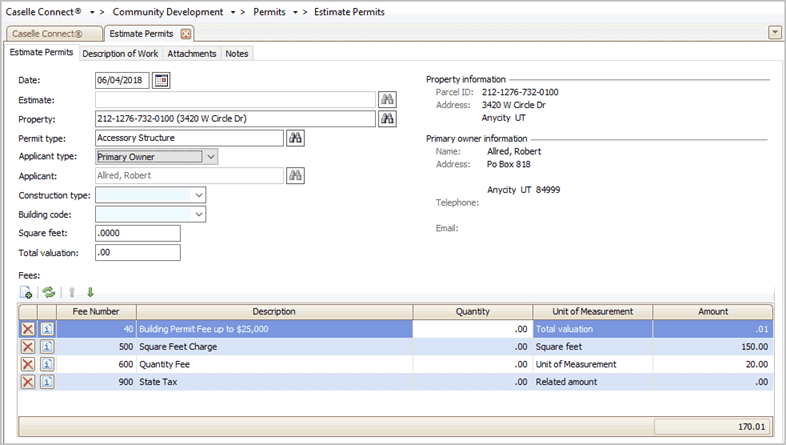
Estimate Permits
Before you get started
-
First, add the owners to Setup New Contacts. The owner record also needs to be created first so you can link it to the property record. [More]
-
Second, add the property to Setup New Properties and link it to the owner. [More]
Estimating a permit
1. Open Connect Community Development > Permits > Estimate Permits.
2. Select the property.
This is the property that is requesting the permit estimate. If the property record is missing from the Search window, you will need to add a new property record to Setup New Properties before you continue.
3. Select the permit type.
This is the permit type being requested.
4. Enter the applicant information.
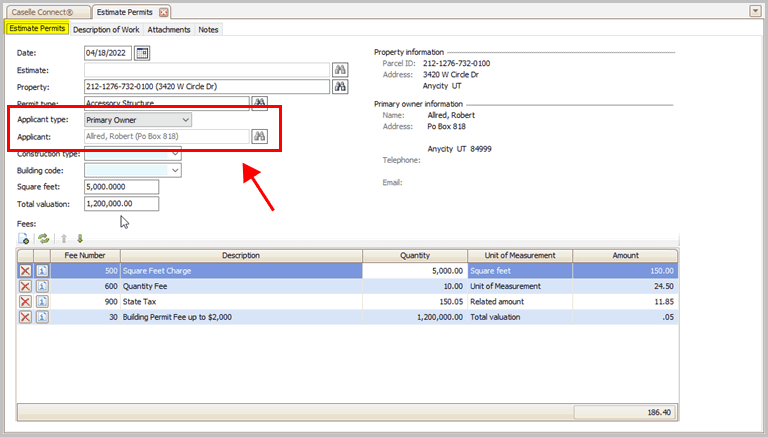
Applicant type and Applicant boxes
Applicant Type
This field describes the relationship of the person who is applying for the permit to the property.
Applicant
The applicant is the individual who is requesting the permit estimate. You can add the applicant type and applicant name to the estimate, then when you're ready to set up the real permit you can convert the permit estimate into a permit. The converted permit will include all of the information on the permit estimate, including the applicant type and applicant name.
Note: The Applicant field will only allow you to enter an applicant name that is assigned to the selected applicant type.
5. Enter the building information.
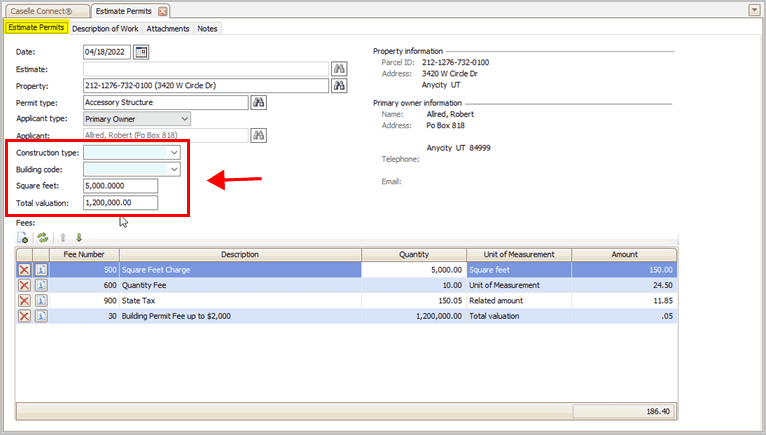
Building information
Construction type
Select the permit construction type. You can type in a new construction type or select one from a list of previous entries.
Building code
Select the permity building code. You can type in a new building code or select one from a list of previous entries.
Square feet
This is the square feet impacted by the permit. A square foot measures area, where a linear foot is a straight-line measurement for measuring length. For example, a 5 by 5 foot square is 25 square feet but the linear measurement is length of one side, or 5 feet.
Total valuation
Total valuation is the value assigned to real property based on an appraisal to assess the property's real market value.
6. Review the fees on the selected permit type.
When you select the permit type, Connect will add the fees assigned to the permit type to the estimate. The section titled Fees displays the fees on the estimate.

Fees
You can add or remove fees from the estimate. To add a fee, click Add a New Fee.
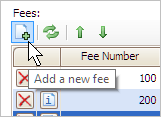
Add a New Fee button
When the fees list is correct, you're ready to enter the Description of Work.
What if the fee is missing from the Search form? To add a fee, open Organization > Fees. Click New (CTRL+N). Fill in the required information, then return to the Estimate Permits to select the new fee. You may need to relaunch the Estimate Permits program to update the options in the Selection form.
7. Review the description of work.
Use the space on the Description of Work tab to enter a detailed narration of the work required. You do not need to enter a description of work to estimate the cost of a permit. However, since you're already collecting the information from the applicant it may be helpful to include it.
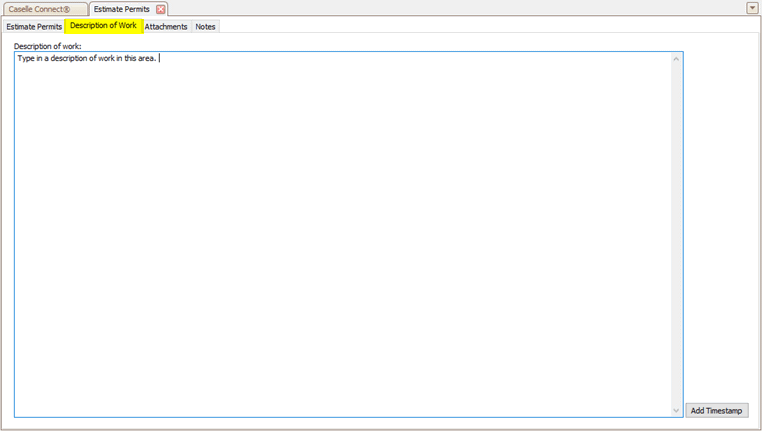
Description of Work tab
A Description of Work is a description that may be one word, a single sentence, or multiple paragraphs that describe the work performed. If you want to record a Description of Work, click the Description of Work tab. Click the Add Timestamp button to insert the current MM/DD/YYY HH:MM. Then, start typing.
8. Add attachments and notes.
9. Click Save  (CTRL+S).
When you're done, click Save (CTRL+S) to save the estimate. Should the applicant decide to apply for the permit, you can save some time by using the estimate to set up a new permit.The permit estimate is saved.
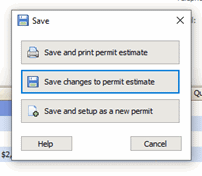
Save options
202205, 2022Apr18
Converting an estimate into a permit
To convert an estimate into a permit, open Permits > Estimate Permits in Edit mode (CTRL+E). Type in the estimate number or click the Search button, at the end of the box, to view the permit estimate. Press Enter.
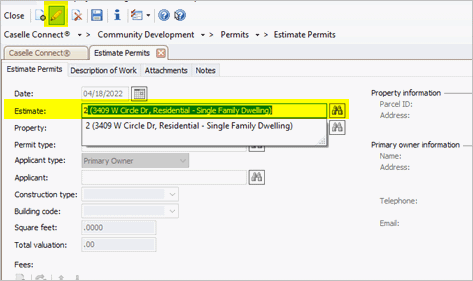
Estimate box
Next, click Save (CTRL+S) twice and then click Save and Set Up As a New Permit.
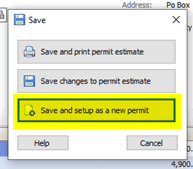
Save options
The estimate is saved as a new permit and the new permit is opened in the Setup New Permits view.
202205, 2022Apr18
Copyright © 2025 Caselle, Incorporated. All rights reserved.