How do I refund a deposit?
Manage deposits
Here are some reasons why you may refund a deposit:
-
The permit/project finished with unused funds.After plan check, inspections, and staff time are charged, sometimes the deposit wasn't fully used. Example: The deposit was $5,000, but only $3,500 was billed, so $1,500 is refunded.
-
The project was withdrawn or canceled. If the applicant decides not to move forward (before too much work is done), the unused portion of the deposit is refunded after deducting any costs already incurred.
-
Overpayment. Sometimes an applicant accidentally overpays their deposit (for example, they submit two payments or pay the wrong amount).
-
Project denial. If an application is denied early in the process, and there's leftover money after billing for review time, the remaining deposit is refunded.
-
Policy or contract requirements. Some cities have formal refund rules in their codes or development agreements. For example, "All unused deposits must be refunded within 90 days of project closure," or specific contract terms may require refunding unused money.
Not all deposits may be fully refundable. Some permit types or activities (like certain application fees) may have non-refundable portions spelled out in the fee schedule or deposit agreement.
Before processing a refund:
-
Check all outstanding charges first. Issuing a refund without verifying if final staff time, inspections, or consultant invoices have been billed. The city may lose money because they refunded too early and can't collect later.
-
Verify the payee receiving the refund is the right person. Refunding the wrong person or company can cause legal disputes and complaints.
-
Check if there are any linked permits or phases. Sometimes a deposit is refunded for one permit/project when the deposit was actually meant to cover multiple phases (for example, grading and building) or linked projects (for example, master and sub-permits).
The unused portion of the deposit will stay in the system until you apply it to fees or charges or refund it.
The Manage Deposits view is included in the 2025.08 release.
Watch a webinar
Refunding a deposit
1. Open Connect Community Development > Permits or Projects and Planning > Manage Deposits.
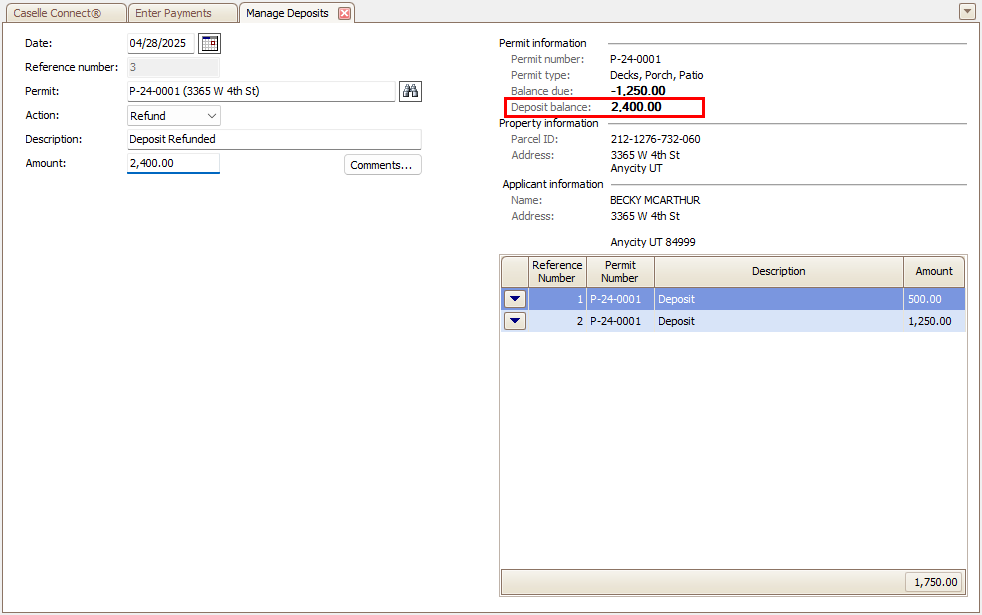
2. Enter a permit/project number.
3. Select Refund as the action.
4. Enter the refund amount.
You can find the deposit balance on the right-side of the view in the Permit/Project Information section.
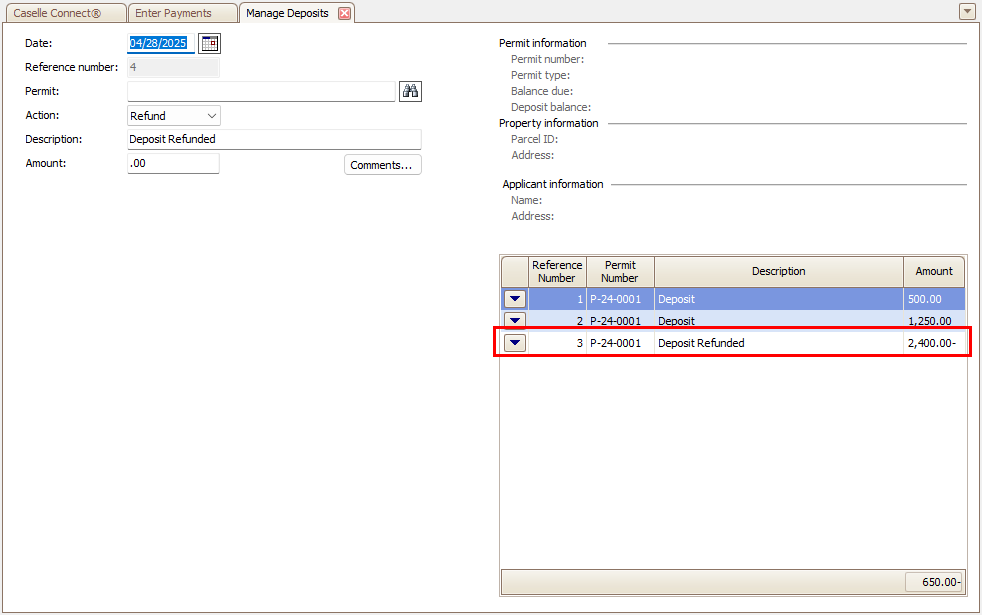
5. Press Enter again.
The refunded amount will be displayed in the transaction grid.
202508, 2025Apr28
Copyright © 2025 Caselle, Incorporated. All rights reserved.