How do I work with rate levels?
Rates
Add rate levels to a rate. Use a rate level to calculate a different billing amount or rate for a given quantity. Click this link to see an example.
Defining a rate with a single level
1. Open Connect Business License > Organization > Rate.
2. Use the Rate box to enter a rate name or number, and then click Enter.
3. In the Rates section, leave 999,999,999.00 in the Level box as the default value.

Level
4. Use Amount/Rate box to enter a value.
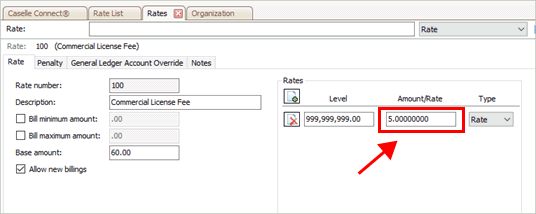
Amount/Rate box
5. Use the Type list to select an option.
If you entered an amount in the Amount/Rate box, select Amount. If you entered a rate in the Amount/Rate box, select Rate.
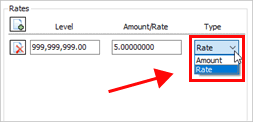
Type list
6. Click Save (CTRL+S).
The level is saved.
Adding a level that calculates an amount/rate to an existing rate
1. In the Rates section, click Add Level
 .
.
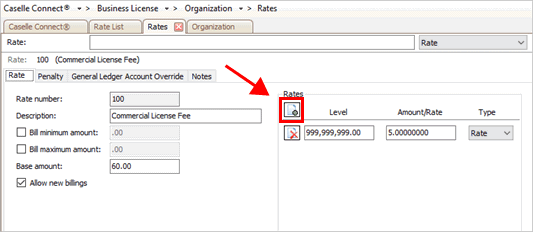
Add Level button
4. Use the blank line to set up the level, amount/rate, and type.
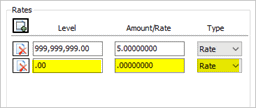
New amount/rate
Deleting a level from a rate
In the Rates section, find the level
that you want to delete and then click  .
.

Delete button for a level
202005, 2020Mar16
Copyright © 2025 Caselle, Incorporated. All rights reserved.