How do I add/remove an alert message?
Caselle can display a warning message on the screen when a user accesses an account. You can choose the content that displays inside the warning message.
The warning message will display in Enter Billing Adjustments, Enter Manual Billings, Enter Payment Adjustments, and Enter Payments.
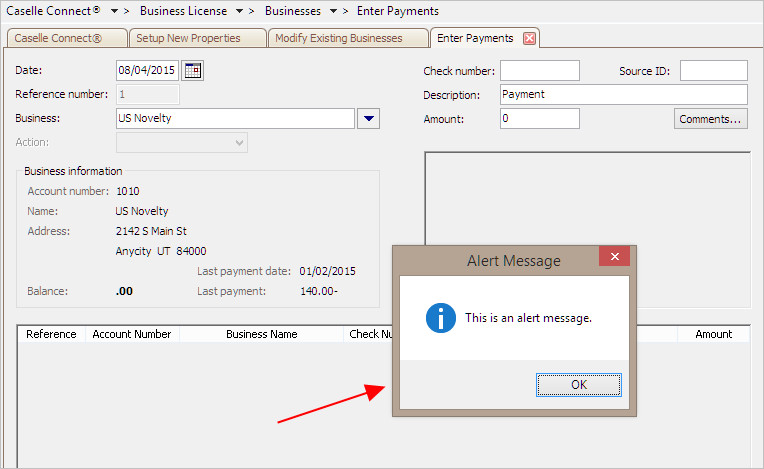
Alert Message in Enter Payments
Watch a video
Learn how to remove an alert message on a business or license (47s)
Updated 14May2018
Adding an alert message to an account
1. Open Connect Business License > Businesses > Modify Existing Businesses.
2. Click to select the field titled Business, and then enter the business name or number. Press Enter.
3. Click to select the field titled Alert Message on the Business tab.
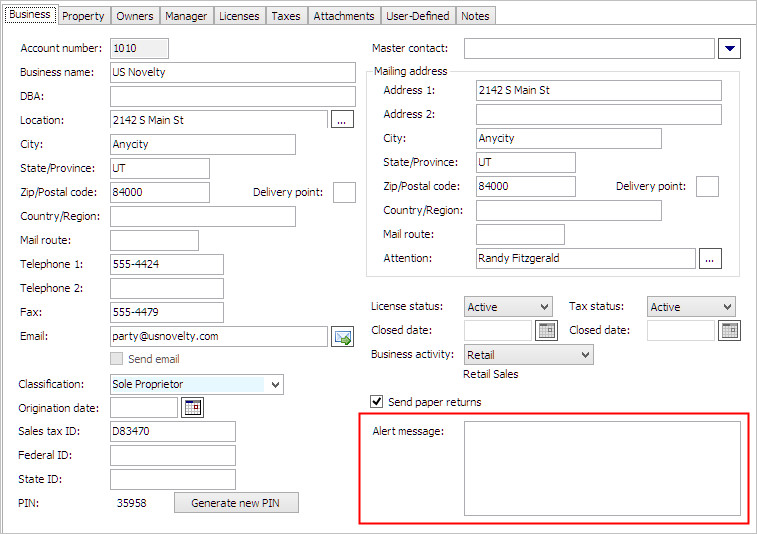
4. Enter the message that you want to display as the warning message.
5. Click Save (CTRL+S).
The alert message is saved.
Removing an alert message from an account
1. Open Connect Business License > Businesses > Modify Existing Businesses.
2. Click to select the field titled Business, and then enter the business name or number. Press Enter.
3. Click to select the field titled Alert Message on the Business tab.
4. Click to select the alert message text.
5. Press the Delete key on the keyboard.
6. Click Save (CTRL+S).
The alert message is removed.
Copyright © 2025 Caselle, Incorporated. All rights reserved.