How do I copy information from a previous requisition and paste it into a new one?
Enter requisition options
Set up the requisition options to copy the requisition detail from the current requisition and paste it into the new requisition. You can copy the value from the following fields:
-
Department
-
Required by date
-
Shipping
-
Job number
-
Inventory number
-
Part number
-
Description
-
GL activity number
-
Quantity
-
Unit price
-
Extended price
-
Freight
-
Sales tax
The values will be copied from the current requisition detail and pasted into the same fields on the new requisition entry form. You can replace the information that's copied to the requisition. Connect will copy the updated information to the next requisition.
Copying general requisition fields to a new requisition
You can copy the value from the following fields:
-
Requisition date
-
Requested by
-
Vendor
Do this...
1. Open Connect Accounts Payable > Purchases and Requisitions > Enter Requisitions or Modify Existing Requisitions.
2. Click Options  (CTRL+F12).
3. Find the Requisition Copy Fields box on the General tab and click  .
.
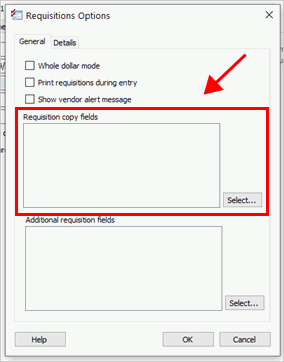
Requisition Copy Fields box
4. Use the Selection window to move the fields that you want to copy to the Selected Copy Fields list.
5. Click OK.
When you enter a requisition, Connect will copy the value from the selected fields and paste it into the new requisition.
202105, 2021Jan04
Removing general requisitions fields from being copied
1. Open Connect Accounts Payable > Purchases and Requisitions > Enter Requisitions or Modify Existing Requisitions.
2. Click Options (CTRL+F12).
3. Find the Requisition Copy Fields box on the General tab and click .
4. Use the Selection window to move the fields that you want to copy to the Available Copy Fields list.
5. Click OK.
The value from the selected field will not be copied to the new requisition.
202105, 2021Jan04
Copying requisition detail fields to a new requisition
You can copy the value from the following fields:
-
Department
-
Required by date
-
Shipping
-
Job number
-
Inventory number
-
Part number
-
Description
-
GL activity number
-
Quantity
-
Unit price
-
Extended price
-
Freight
-
Sales tax
The values will be copied from the current requisition detail and pasted into the same fields on the new requisition entry form. You can replace the information that's copied to the requisition. Connect will copy the updated information to the next requisition.
Do this...
1. Open Connect Accounts Payable > Purchases and Requisitions > Enter Requisitions or Modify Existing Requisitions.
2. Click Options (CTRL+F12).
3. Click to select the Details tab.

Details tab
4. Click .
5. Use the Selection window to move the fields that you want copied to the Selected Copy Fields list.
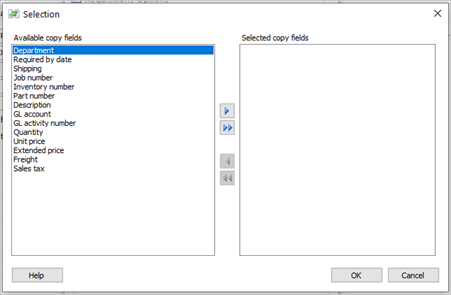
Selection window
You can double-click or use the buttons in the middle of the Selection window.
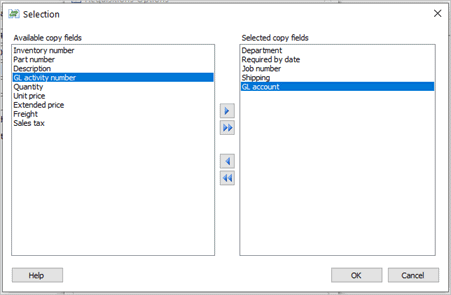
Selection window
6. Click OK.
The requisition detail fields are saved.
202105, 2021Jan04
Removing requisition detail fields from being copied
1. Open Connect Accounts Payable > Purchases and Requisitions > Enter Requisitions or Modify Existing Requisitions.
2. Click Options (CTRL+F12).
3. Click to select the Details tab.
4. Click .
5. Move the field that you do not want to copy to the Available Copy Fields list.
6. Click OK.
The updated requisition detail fields are saved.
202105, 2020Jan04
Copyright © 2025 Caselle, Incorporated. All rights reserved.