Step 15. Print an Aging Report
2021 Accounts Payable Year-end Checklist
Print the Aging Report by invoice date to review unpaid balances. The Aging Report is aged by invoice date, not by GL period.
Are you deleting history? If you are planning on deleting history, complete Steps 15-18. If you're not deleting history, you're done with the Accounts Payable Year-end Checklist. [MP4]
How do I print a year-end Aging Report?
1. Open Connect Accounts Payable > Reports > Aging Report.
2. Use the Title box to select Aging Report - By Date Using Invoice Date [Caselle Master].
3. Change the Report Dates box to select 12/31/YYYY.
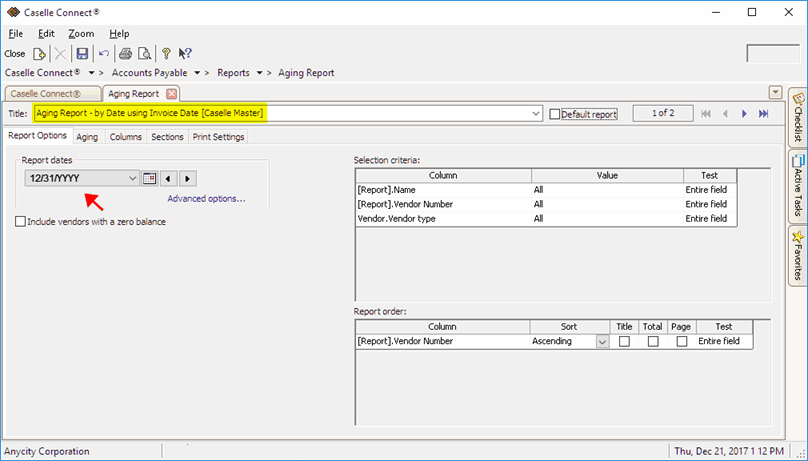
Aging Report
4. Click Print  (CTRL+P).
After the report prints, set it aside. Continue to Step 16. Print an Open Purchase Order Report.
202011, 2020Dec15
Copyright © 2025 Caselle, Incorporated. All rights reserved.