How do I add a user?
Add a user to Accounts Payable.
Set up the user table to use approval groups and approval steps to approve items in Accounts Payable.
Before you get started
Add the user to the Setup/Modify User Rights in System Management.
Adding a user to Accounts Payable
After you set up the user in the master user table in System Management (see the help topic titled How do I add a new user?).
Do this...
1. Open Connect Accounts Payable > Organization > Users.
2. Click New (CTRL+N).
3. Enter a User ID.
Use this field type in a user name or user ID from Setup/Modify User Rights in System Management.
4. Press Enter to accept the User ID.
The user name displays in the Name field.
5. Click Save (CTRL+S).
The user is added to the Accounts Payable application.
Updated 01Aug2018
Setting up a user to receive notifications
You can send notifications to a user by email, text, and My Dashboard in Connect Online.
Do this...
1. Open Connect Accounts Payable > Organization > Users.
2. Look up a user.
3. Set up email notifications.
Send notifications to the user's email address. The user's email address that's stored in the Setup/Modify User Rights displays in the Mobile Number field. To add or update the user's email address, see the help topic titled How do I update a user's notification email or mobile number?
Select the checkbox titled Receive Emails.
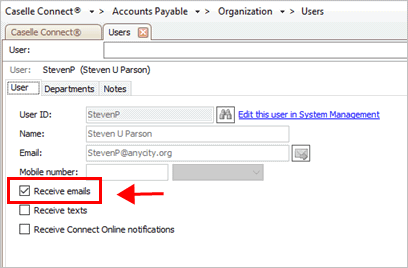
Receive emails
4. Set up text notifications.
Send text notifications to the user's mobile number. The user's mobile number that's stored in the Setup/Modify User Rights displays in the Mobile Number field. To add or update the user's mobile number, see the help topic titled How do I update a user's notification email or mobile number?
Note: Message and data rates may apply.
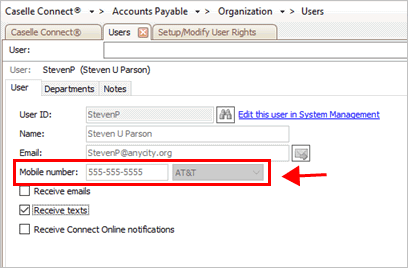
Mobile Number
Select the checkbox titled Receive Texts.
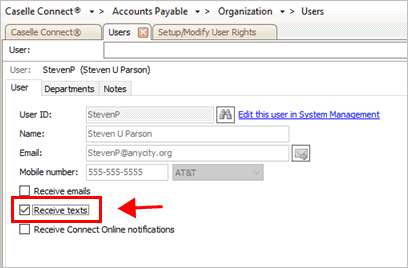
Receive texts
5. Set up Connect Online notifications.
Send notifications to the Notifications widget in Connect Online.
Note: The user must be set up with user rights to use Connect Online, see the section titled Assigning user rights to Connect Online in the help topic titled How do I assign user rights?.
Select the checkbox titled Receive Connect Online Notifications.

Receive Connect Online Notifications checkbox
6. Click Save (CTRL+S).
The user notifications are set up.
Updated 01Aug2018
Assigning a department to a user
You can use the Users table or the Departments table in Accounts Payable to assign a department to a user.
Do this...
1. Open Connect Accounts Payable > Organization > Users.
2. Look up a user.
3. Click to select the Departments tab.
4. Click the Select Departments button.
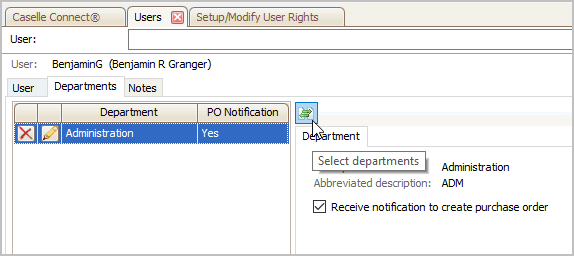
Select Departments button
The Selection form displays a list of departments.
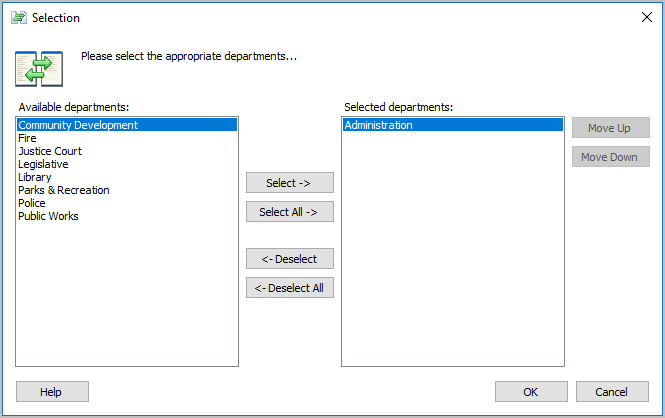
Selection form
5. Move a department to the Selected Departments list to assign the user to it and then click OK.
The department displays in the pane on the left side of the screen.
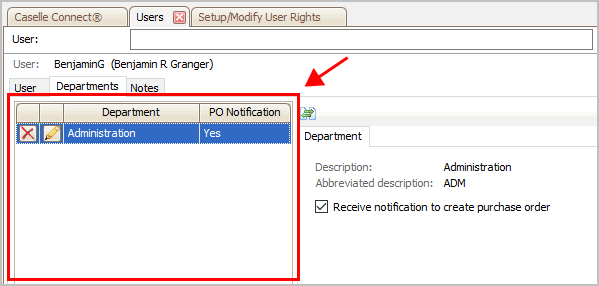
Departments assigned to the user
Updated 01Aug2018
Viewing approval processes assigned to a department
Click the Edit  button to view the department properties. You can find out which users
and approval processes are assigned to the department. When you assign
a user to a department the user will also be assigned as a user to the
approval process.
button to view the department properties. You can find out which users
and approval processes are assigned to the department. When you assign
a user to a department the user will also be assigned as a user to the
approval process.
Updated 01Aug2018
Removing a department from a user
Click the Delete  button to remove a department
from a user. The user will not have access to the routines, tasks, approval
processes, and reports that have been assigned to the department.
button to remove a department
from a user. The user will not have access to the routines, tasks, approval
processes, and reports that have been assigned to the department.
Updated 01Aug2018
Copyright © 2020 Caselle, Incorporated. All rights reserved.