How do I fix Checkout errors?
Recalculate database values.
Use Recalculate to correct errors in the Accounts Payable database. When you run Checkout, the system will search for errors in the database. The Checkout report lists the errors. Errors that can be fixed by running Recalculate will include a comment that says Run Recalculate. The errors that cannot be fixed by running Recalculate will not include the Run Recalculate comment.
Running Recalculate
1. Open Connect Accounts Payable > Organization > Recalculate.
2. Set up the Selection Criteria.
Use the Selection Criteria to filter and select vendors.
Do you want to recalculate all of the vendors?
-
Yes, I want to include all vendors. In the Selection Criteria, change the Vendor.Vendor number Value to ALL.
-
No, I only want to include some vendors. In the Selection Criteria, double-click ALL located next to the Vendor.Vendor number. When the Values Entry form displays, type in the vendor numbers in the Enter Value field.
3. Set up the Recalculate options.
Redistribute vendor rand remittance name fields
Mark transactions as updated to General Ledger Through MM/YY (MM/DD/YYYY)
Correct General Ledger period dates
Set invalid purchase order periods to MM/YY (MM/DD/YYYY)
Correct invalid vendor information
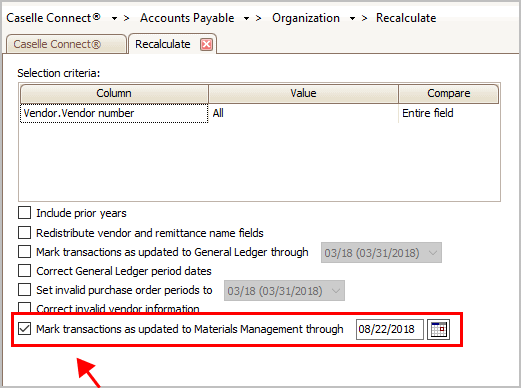
Mark transactions as updated to Materials Management Through MM/DD/YYYY
4. Click GO (CTRL+G).
The routine runs.
Updated 01Aug2018
Include prior years
You can select how many years to include in the Recalculate routine. Selecting the current year will take less time to process than including prior years.
Do you want to include prior years?
-
Yes, I want to include prior years. Select the Include Prior Years checkbox. Note: This option will require more time to complete.
-
No, I only want to include the current year. Leave blank the Include Prior Years checkbox. This option is usually not selected.
Redistribute vendor and remittance name fields
This option will split the value that is stored in the Name field into First Name, Middle Name, and Last Name. For example, if the Name field stores Jane Doe Smith or Smith, Jane Doe, then running this routine will split the stored name like this: First Name = Jane, Middle Name = Doe, Last Name = Smith.
Do you want to parse the vendor and remittance name fields?
-
Yes, I want to parse the vendor and remittance name fields. Select the Redistribute Vendor and Remittance Name Field checkbox.
-
No, I want to leave the values in the vendor and remittance name fields as is. Deselect the Redistribute Vendor and Remittance Name Field checkbox.
Mark transactions as updated to General Ledger through MM/DD/YYYY
If the transaction has been updated to the General Ledger, use this option to change the status flag on the transaction to updated.
Has the transaction been updated to the General Ledger?
-
Yes, the transaction has been updated to the General Ledger. Use Connect Accounts Payable > Organization > Checkout. Then, select the Set Transactions as Updated to the General Ledger Through... checkbox to change the transaction status to updated. You'll want to select the GL period when the transaction was updated.
-
No, the transaction has NOT been updated to the General Ledger. Use Connect Accounts Payable > Organization > Update General Ledger to update the transaction to the General Ledger.
Correct General Ledger period dates
Use this option when the GL period that is saved in a transaction does not match the GL period assigned to that GL period. For example, Checkout will report an error when Period 4/10 is recorded even though the period date is 03/31/2010 and the period number is 9. This option will change the Period to 3/10 to match the period date of 03/31/2020 and period number of 9.
Note: This option is only available when the General Ledger interface is set to Caselle 2.x or Caselle 4.x.
Note: IF the GL period does not exist in the GL Period Date table, the system will set the GL period to 13.
Do you want to update the GL period to match the GL period date?
-
Yes, I want to correct the GL period dates. Select the Correct General Ledger Period Dates checkbox.
-
No, I want to leave the GL period dates as is. Deselect the Correct General Ledger Period Dates checkbox.
Set invalid purchase order periods
An invalid purchase order period includes periods that begin with zero (0), for example 0/10, 0/00, etc, or fourteen (14), for example, 14/10, 14/11, etc.
Do you want to change an invalid purchase order period to a valid purchase order period?
-
Yes, I want to fix invalid purchase order periods. Select the Set Invalid Purchase Order Periods to [ ___ ] checkbox. Then, select a valid period from the drop-down list. The routine will reassign invalid purchase order periods to the period that is selected from the drop-down list.
-
No, I want to leave invalid purchase order periods as is. Deselect the Set Invalid Purchase Order Periods to [ ___ ] checkbox.
Correct invalid vendor information
The invalid vendor information occurs when one of the following rules is broken:
-
Each requisition, purchase order, invoice, and check can only be tied to one vendor.
-
A single check can pay multiple invoices, but the vendor and remittance should be the same.
-
An invoice can be paid by multiple checks, but the vendor and remittance should be the same.
|
Scenario |
The system copies vendor information from the... |
Then, pastes it into the... |
|
The invoice vendor number is different from the check vendor number. |
Check's vendor information |
Invoice vendor fields |
|
The invoice vendor is not the same as the purchase order vendor. |
Invoice's vendor information |
Purchase order vendor fields |
|
The invoice remittance is different from the check remittance. |
Invoice's remittance information |
Check vendor fields |
|
The purchase order vendor does not match the requisition vendor. |
Purchase order's vendor information |
Requisition vendor fields |
Do you want to correct invalid vendor information?
-
Yes, I want to correct invalid vendors. Select the Correct Invalid Vendor Information checkbox.
-
No, I want to leave invalid vendors as is. Deselect the Correct Invalid Vendor Information checkbox.
Mark transactions as updated to Materials Management through MM/DD/YYYY
Change the inventory item status to updated. Use this option when the Checkout report shows a transaction as Not Updated and you do not want to post the transaction to Materials Management, but you do want to stop the error from showing up on the Checkout report.
Example: City XYZ receives uses Material Management instead of Accounts Payable to manually receive inventory items. To prevent the inventory items that Jane removed by hand into the Accounts Payable application from posting to the Material Management application, Jane uses the option in Recalculate to change the update flag on inventory items that she entered during the past week to updated. When Jane runs Update Inventory Items Received to Materials Management to post transactions for inventory items to Materials Management, Connect will not post the inventory items that were entered by hand and Jane won't have to remove duplicate transactions for the same inventory items from Material Management because the inventory items have already been entered in the Materials Management application.
Mark transactions as updated to Materials Management through MM/DD/YYYY
Updated 01Aug2018
Copyright © 2025 Caselle, Incorporated. All rights reserved.