Which approval group is assigned to an approval step?
Look up the approval group and approval group users.
You can assign one approval group to an approval step. When you set up an approval process you can view a list of approval steps that have been assigned to the approval process and the approval group that is assigned to the approval step. You can also find out which users are assigned to the approval group. However, you need to use the Approval Steps table to edit the approval group.
Looking up the approval group
1. Open Connect Accounts Payable > Organization > Approval Processes.
2. Use the field titled Approval Process to enter an approval process name. Press Enter.
3. Click to select the Approval Steps tab.
The list on the Approval Steps tab displays all of the approval steps that are assigned to the approval process.
4. Click to select an approval step.
5. Find the field titled Approval Group.
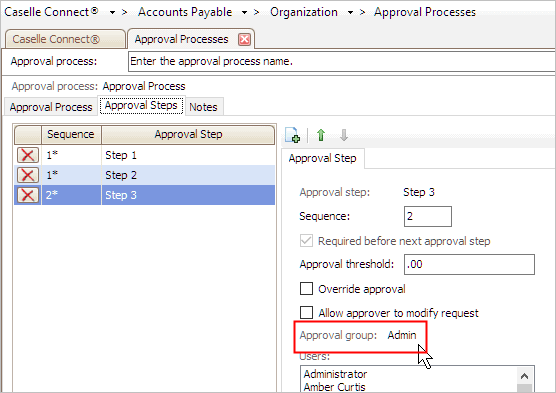
Approval status
This field shows the approval group that is assigned to the approval step.
Looking up the approval group users
1. Open Connect Accounts Payable > Organization > Approval Processes.
2. Use the field titled Approval Process to enter an approval process name. Press Enter.
3. Click to select the Approval Steps tab.
The list on the Approval Steps tab displays all of the approval steps that are assigned to the approval process.
4. Click to select an approval step.
5. Find the field titled Users.
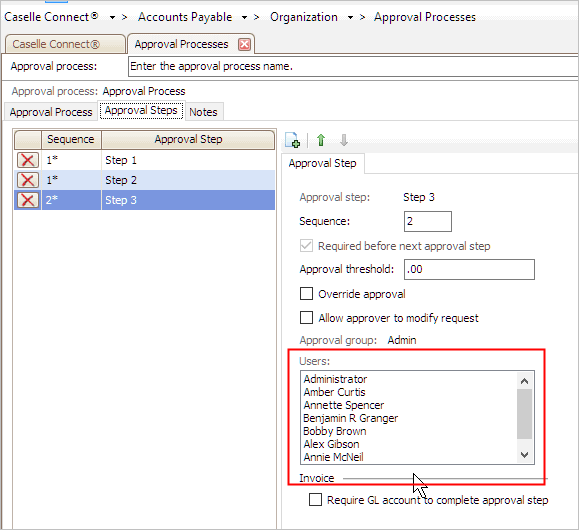
Users list
This field displays all of the users who can approve requisitions assigned to the approval step. See the help topic titled How do I add an approval group?
Changing the approval group
To change the approval group that is assigned to an approval step, use the Approval Steps table (Organization > Approval Steps).
Changing the approval group users
To add or remove approval group users, use the Approval Groups table (Organization > Approval Groups). See the help topic titled How do I add an approval group?
Copyright © 2020 Caselle, Incorporated. All rights reserved.