How do I approve a vendor? (2024.05)
Connect Online
Approve or deny vendors that have been created in Connect applications and the organization is using an approval process for approving vendors. You can use the Approve Vendors page in Connect Online to review vendors that have been assigned to you for approval.
The Approve Vendors page was added to the 2024.05 release.
Before you get started
-
You must be set up as an approver (Organization > Approval Groups) with user rights to the Approve Vendors in Connect Online (System Management > Setup/Modify User Rights).
Approving a vendor
1. Open My Dashboard.
2. Click Applications  .
.
3. Select Approve Vendors.
The vendors who have been assigned to you as an approver will be displayed in the grid. Vendors that have been assigned to a different approval step or approval group that you have not been assigned to will not be displayed.
4. Use the Status menu to select an approval status.
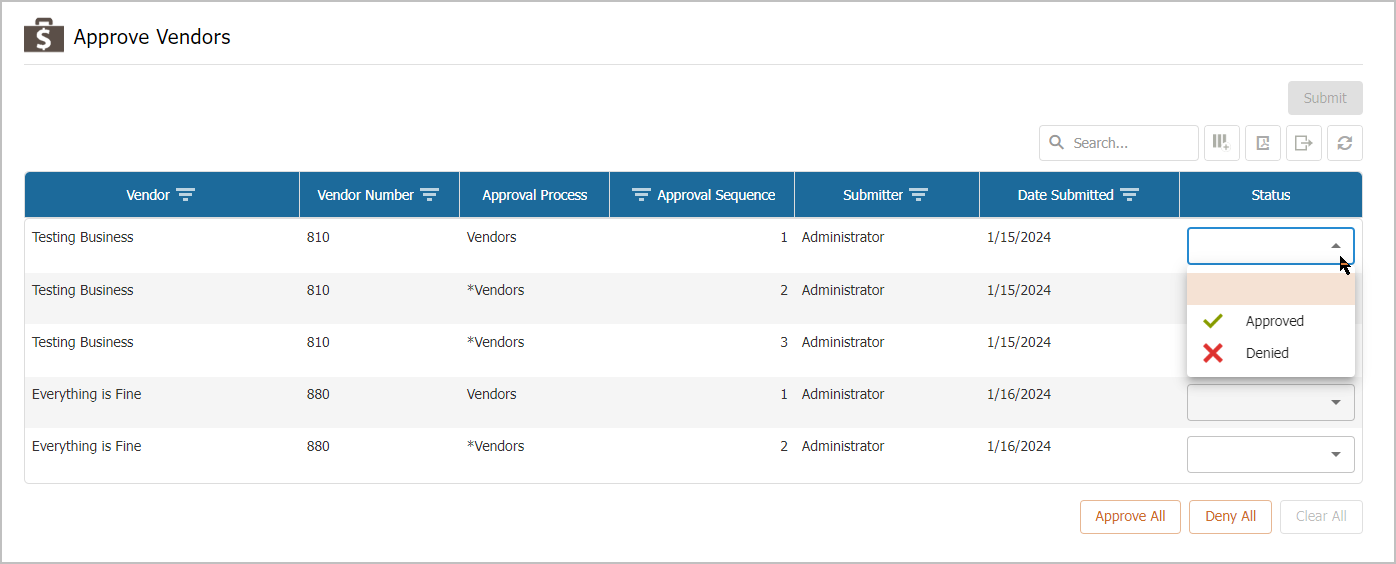
5. Click  .
.
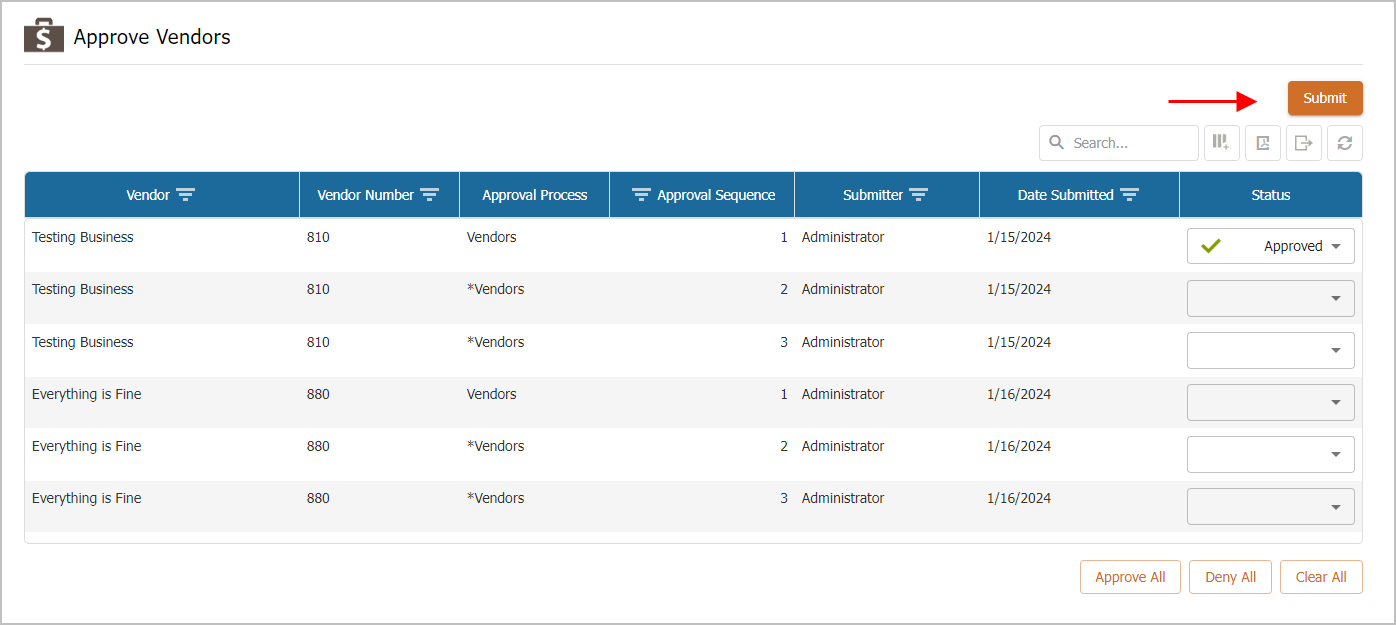
After you click Submit,
-
Approved vendors will move to the next step in the approval process. If this was the last step in the approval process, the vendor is approved and the vendor status is updated to show the new approved status.
-
Denied vendors will be removed from the vendor list and users will not be able to select the vendor for requisitions, purchase orders, invoices, and so on. This also applies to imported requisitions, purchase orders, and invoices.
202405, 2024Jun06
Copyright © 2025 Caselle, Incorporated. All rights reserved.