How do I change the column value? (Selection criteria)
Reports and routines
The report will use the values in the Selection Criteria to filter the report information. You can assign a custom value or values to each report column that's listed in the Selection Criteria.

Selection Criteria on the Report Options tab
Before you get started
-
Add a column to the Selection Criteria. See the help topic titled How do I add a column to the Selection Criteria?
Changing the assigned value
1. Open a report.
2. Find the section titled Selection Criteria.
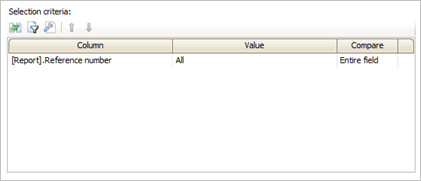
Selection criteria
3. Click to select the column name.
The report will use the columns in the Selection Criteria to filter the report information. To add a column, see How do I add a column to the Selection Criteria?
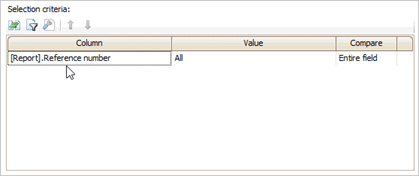
Column name
4. Click to select Enter Values for the Selected Criteria  .
.

Enter Values button
The Values Entry form displays.

Enter Values window
5. Use the Enter Value box to enter the value to use to filter information.
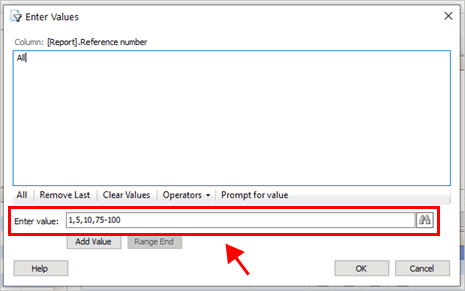
Enter value box
What can I enter?
-
A single value. Example: 100
-
A range. Use a hyphen (-) to separate the beginning and ending values in the range. Example: 1-100
-
Both a single value and range. Use a comma (,) to separate values when you're using a combination of single values and ranges. Example: 1, 5, 10, 75-100
6. Click Add Value  .
.
7. Click OK.
The values that you have added are displayed in the Values column in the Selection Criteria. The report will use the values to filter the report information.
202008, 2020Jul09.
Copyright © 2025 Caselle, Incorporated. All rights reserved.