Selection criteria
Reports
In Connect, the Selection Criteria allows you to select the information that you will use to display on the report. Other types of reporting software use the terms filter and sorting order to describe a portion of the function that the Selection Criteria provides. Use All to include all of the values in the field. Change All to a value or range to filter the field contents. For example, Jane uses the Selection Criteria to print a report that only selects accounts numbered 011010100 to 0110799.
Column
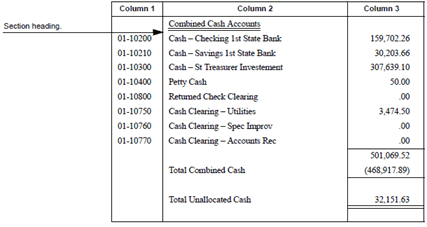
A report uses sections and columns to organize information. A section organizes data in horizontal blocks, while a column organizes data in vertical blocks. In this image, Column 1, Column 2, and Column 3 are examples of columns on a report. This is an example of a section on a report that contains three columns. Column 1 displays the account number. Column 2 displays the account title. And Column 3 displays the current year-to-date amount.
What do you want to do?
-
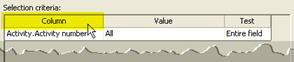
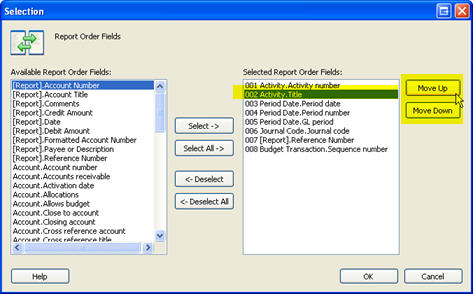
Add a column to the report. Double-click the column titled Column. Use the Selection form to move the fields that you wish to include on the report to the Selected Report Order Fields list. Click OK. The field name displays in the Report Order grid.
-
Remove a column from the report. Double-click the column titled Column. Use the Selection form to move the fields that you DO NOT wish to include on the report to the Available Report Order Fields list. Click OK. The field name does not display in the Report Order grid.
-
Change the display order. Double-click the column titled Column. The fields will print on the report as they appear in the Selected Report Order Fields list. Click to select a field name. The selected item is highlighted. Then, use the Move Up or Move Down buttons to change the printing order.
Test
Use Test to define the option that you selected in the column labeled sort. You can test on account segments or number of digits. (A) Account, (D) Department, (F) Fund, (O) Object, (R) Revenue, and (S) Source are segments that you use in General Ledger to define an account number. While a digit is a placeholder that represents a single number. The number 2984 has four digits in it. The number 387 has three digits. You can use digits to determine how many digits in the selected value match the testing value.
First, use the Test column to select the value to test.
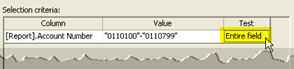
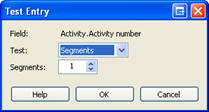
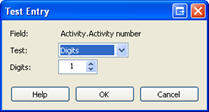
Then, use the Test Entry form to select a test option. Use segment to test the account segment. Use digit to test a digit or digits in the field.
Second, select the portion of the field to test.
If you selected Segment as the Test value, use the Segment field to enter the number of segments to test. Example: The account is FF-AAAAA. If the Test value is Segment and the Segments field is 1, the report will test the first segment in the account number, or FF-AAAAA.
If you selected Digit as the Test value, use the Segment field to enter the number of digits to test in the testing value. Example: The customer number is 1.10101. If the Test value is Digit and the Digits field is 1, the report will test the first digit in the customer number, or 1.10101.
Value
When you are setting up the Selection Criteria, the value is the value of the items that the report will include in the report. When the Value is All, the report will select all of the items in the field. When the Value is a single value, the report will include only the selected value. When you set the Value to a range, the report will include the first and last value in the range and all of the values found between the first and last value.
Do this...
1. Double-click the row under the column titled Value.
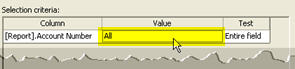
2. Use the Values form to enter the search value. You can click on the Values field and type in an entry. Use a comma (,) to separate each entry. Use a dash (-) to separate a range.
3. Click OK when you're done.
Values form
The Values Form displays when you can filter the contents of a field. Use the form to enter a value, range, or use operators to use simple command statements to select the report values.
Values
Use Values to view the values that have been selected as the search criteria. You can also click on this field and type in the values.
Enter value
How do I enter a single value? Use the Enter Value field to enter a single value. Then, click Add to Values to add the value to the Values field. Repeat to enter the next value. Example: "1", "5", "7", "10". The form will insert a comma (,) between each entry.
How do I enter a range? Use the Enter Value field to enter the first value in the range. Click Add to Values. Then, use the Enter Values field to enter the last value in the range. Click Range End. Example: "100"-"500". The form will insert a dash (-) between the first and last value.
___
All
Use All to include all of the values. Example: There are 100 accounts in the database. Jane selects All to include all of the 100 accounts.
Clear values
Use Clear Values to delete all of the values from the Values field. Use this option to clear the Values field and start over again.
Like options
In the world of software development, LIKE is an operator that you can use to search for a pattern in a column. You can use these options to use these commands to program the Selection Criteria to perform more complicated search patterns.
[LIKE] Test only - Enclose value with %
[NOT LIKE} Text only - Enclose value with %
% Zero or more characters
_Any single character
[] Any character within the brackets
[^] Any character not within the brackets
[A-Z] Any single alphabetical character
[0-9] Any single number
[%] Percent character
[ _ ] Underscore character
[[] Opening bracket
Operators
You can use an Operator to compare fields that are used in the Selection Criteria. An Operator is a word or phrase that is assigned to a specific function in the program. Operators can compare one field against another field or compare a field against a set parameter. For example, you can use operators to find customers with a payment less than $5.00.

Remove last
Use Remove Last to delete the last value that you added to the Values field.
Search
Use Search to look up the field contents.
Special
Use the Special button to use commands that are unique to the application. For example, Jane wants to set up a report that asks her which customer number to use to print the report. She changes the value in the Selection Criteria for customer.customer number to {Prompt for Value}. Now, when Jane runs the report a pop-up message will ask her for the customer number.
Copyright © 2025 Caselle, Incorporated. All rights reserved.