Fields
Reports
Set up the fields the application will use to generate the report. This is where the report gets its information and where you format what prints in the header row.
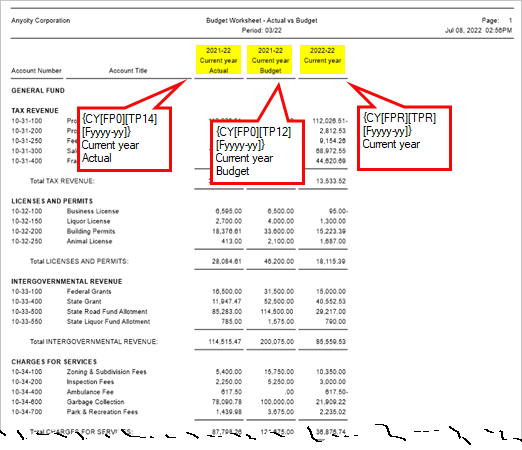
This is what the fields look like on the Fields tab in the report setup.
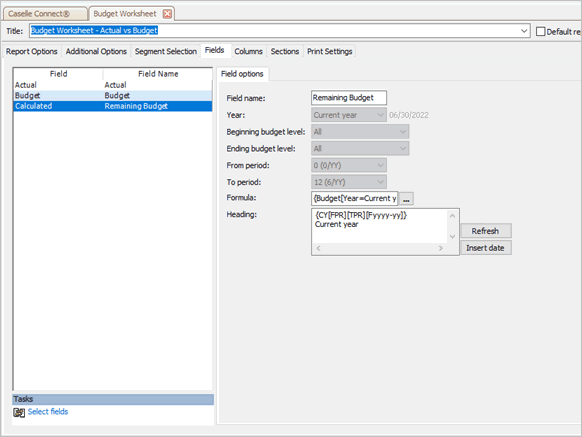
Reports, Fields tab
Field name
Enter the field name to display in the header row.
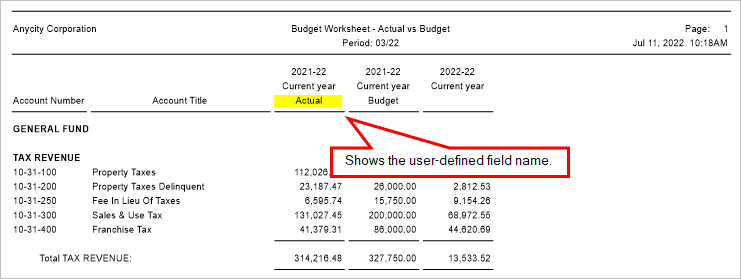
Field name
Year
Select the reporting year. You can show the current year, a prior year, or a future year.
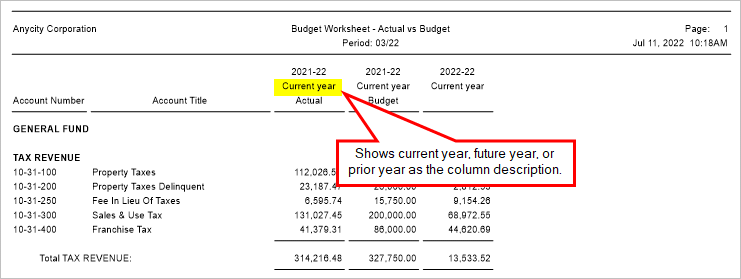
Year, Description
When you select a reporting year, the starting year and ending year will be displayed in the header row.
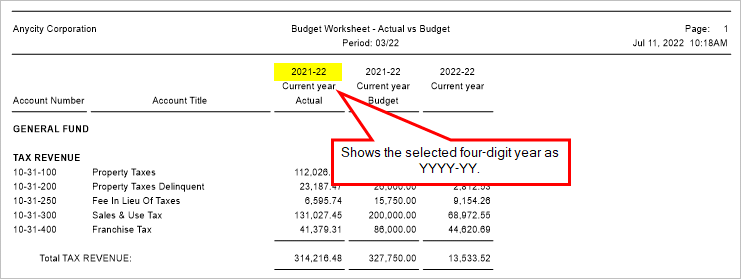
Year, YYYY-YY
Beginning and ending budget level
If you have selected a budget field, the default setting will select All. You can change the budget level to use a specific budget level as the budget beginning and ending level.
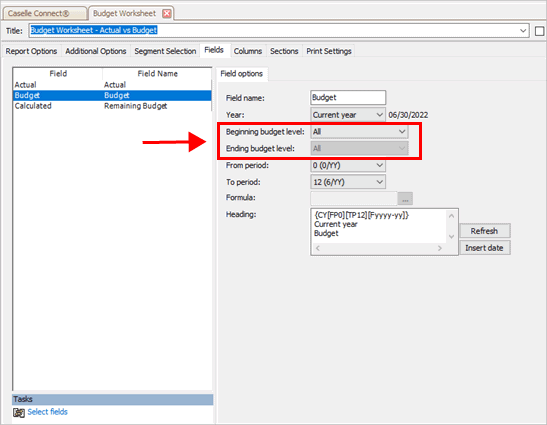
Fields, Beginning and ending budget level
What is the budget level range?
-
To show all budget levels, select All.
-
To show a single budget level, use the same budget level as the beginning and ending budget level.
-
To show a budget level range, select a beginning budget level and then select an ending budget level.
From and To period
The From and To period will default to the from and to period for the field.
Formula
Set up a field to calculate an amount. For example, this report column calculates the difference between the current year beginning budget amount and the current year actual budget amount.
{Budget[Year=Current year][BeginBudgetLevel=All][EndBudgetLevel=All][FromPeriod=0 0/YY][ToPeriod=12 6/YY]}-{Actual[Year=Current year][FromPeriod=0 0/YY][ToPeriod=14 14/YY]}
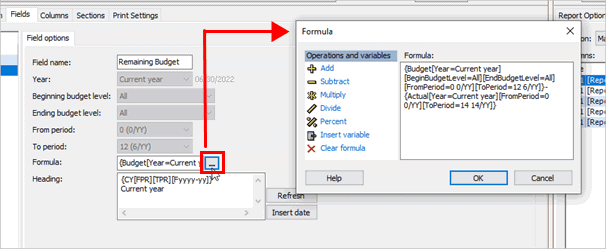
Fields, Formula
To insert a variable, click Insert Variable and then use the Variables window to define the variable. Click OK to add the variable to the formula.
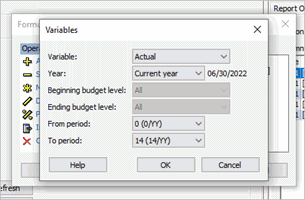
Variables window
Heading
Use text and variables to format the column heading. This is the column heading that will print on the report.
Date code
PY - Prior Year. CY - Current Year. FY - Future Year. G - Grant.
Years
Enter a number (1-9999). This is the number of years the column is reporting.
From Period
Use the menu to select the first period in the reporting range.
To Period
Use the menu to select the last period in the reporting range.
Format
Click the menu button, at the end of the Format box, to select a mask to format the date and time.
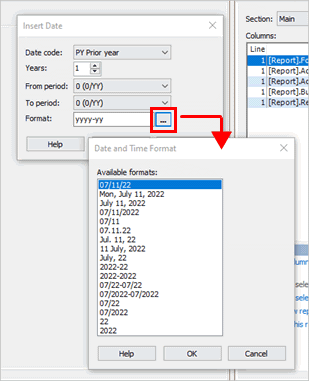
Format, menu button
202208, 2022Jul11
Copyright © 2025 Caselle, Incorporated. All rights reserved.