Combined Financial Report
Use the Combined Financial Report to print year-to-date transaction amounts by account number. Fund numbers will be omitted. Report columns are created based on the available fund types. There is also an option to print a Financial Statement Definition after the initial report prints.
In this Topic
Printing Combined Financial Report
1. Open Connect General Ledger > Reports > Combined Financial Report.
2. Select a report title.
3. Set up the report options.
4. Click Print (CTRL+P).
The report prints.
Options
Customize report heading/footer
The report heading prints at the top of each printed page, see the highlighted content in the image. Likewise, the report footer prints at the bottom of each printed page. You have up to four lines that you can use to customize the header/footer. The text in each line will appear on the report exactly as it is entered.
Do you want to replace the default header with a custom header?
-
Yes, print a custom header. Click to select the Customize Report Heading checkbox. Then, use Line 1-4 to enter the content in the report header.
-
No, print the default header. Click to deselect Customize Report Heading.
Do you want to replace the default footer with a custom footer?
-
Yes, print a custom footer. Click to select the Customize Report Footing. Then, use Line 1-4 to enter the content in the report footer.
-
No, print the default footer. Click to deselect Customize Report Footing.
Include report-only transactions
A report only transaction is recorded and will be updated to the General Ledger as a report only transaction.
Do you want include report only transactions?
-
Yes, I want to include report only transactions. Select the Include Report-Only Transactions checkbox.
-
No, I do not want to include report only transactions. Deselect the Include Report-Only Transactions checkbox.
Net revenue title
Net revenue is the gross (total) revenue minus returns and any other negative revenue. Use the Net Revenue Title to enter the title that you will use on the report to label net revenue.
What do you want to do?
-
I want to assign a title to net revenue. Use the Net Revenue Title to enter the title for the line that reports net revenues.
-
I want to use the default title. The default title is "Net Revenue".
Page between sections
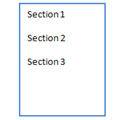
Use Page Between Sections to begin printing the report section on a new page. When this option is not selected, the report prints the report sections as a continuous document, like this
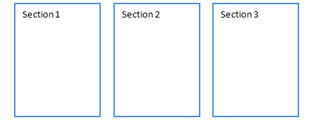
When this option is selected, the report will print the report section on a new page, like this
Do you want to start printing each section on a new page?
-
Yes, print each section on a new page. Click to select Page Between Sections.
-
No, print sections without page breaks. Click to deselect Page Between Sections.
Print GL period as a date
You can use the GL Period as the report date (MM/DD/YYYY) instead of using the period number (MM/YY).
What do you want to do?
-
I want to print the GL period (MM/DD). Click to select Print GL Period as a Date.
-
I want to print the GL period as a date (MM/DD/YYYY). Click to deselect Print GL Period as a Date.
Report date
Report Dates is the report date range the report will use to filter transactions.
Do you want to use the current period as the report date range?
-
Yes, I want to use the current period. Continue to the next step.
-
No, I want to use a different period. Change the Report Date, or click Advanced Options
Replace section title with
The section title is the heading that appears at the beginning of each section. The default section title for the asset section is "Assets", "Liability" for the liability section, and "Equity" for equity section.
Do you want to use the default section title?
-
Yes, use the default section title. Use the Additional Options tab to deselect Replace Section Title With.
-
No, let me assign a custom section title. Use the Additional Options tab to select Replace Section Title With. Then, type in the section title in the Replace Section Title With field.
Revenue/expenditure financial statement
Which financial statement do you want to print? Use the Revenue/Expenditure Financial Statement to select the form layout that you will use to print the financial statement.
Suppress report date and page number
The report date and page number print on each page. Use this option to print the report without printing the report date and page number.
Copyright © 2025 Caselle, Incorporated. All rights reserved.