
2017
Follow these instructions when you’re ready to use AIR (Affordable Care Act Information Returns) to electronically submit the ACA (Affordable Care Act) Forms 1094 and 1095 to the IRS.
In this Topic Hide
How do I submit electronic ACA files to the IRS?
Step 1: Register to use IRS e-Services Tools
Step 2: Apply for your Information Return Transmitter Control Code - TCC
Applying for a Transmitter Control Code (TCC)
Step 3: Test Communication with AIR System
3A. Setting up ACA options in Payroll
3C. Creating the communications test file
3D. Submitting a communications test file to the IRS
Step 4: Electronically Filing through AIR
Filing electronically through AIR
Use Internet Explorer 8, 9, or 10 (e-services now supports up to Internet 11); Microsoft Edge, Firefox, Safari 9, or Chrome.
Download the ACA App Tutorial at https://www.irs.gov/PUP/for_taxpros/software_developers/information_returns/aca_app_tutorial_online.pdf The PDF was created by the IRS for software developers; however, it also contains a wealth of information that may help you fill in the necessary forms. You can use the Search tool in the PDF reader to look up terms, field names, and definitions.
What if clicking on the link doesn't work? If clicking on a link to a website doesn’t work, try copying and pasting the web address into the internet browser.
You’ll need to register through e-Services before you can apply for a Transmitter Control Code (TCC). You must be a responsible official or a contact to register using this site. Allow up to 28 days for processing.
What is a responsible individual? A Responsible Official is the individual with responsibility for and authority over the electronic filing of ACA Information Returns at the firm or organization location. Responsible Official is also the first point of contact with the IRS, has authority to sign original/revised ACA Application for TCC, and is responsible for ensuring that all requirements are adhered to. At least one Responsible Official will need to be listed on the application. All Responsible Officials will be required to sign the Terms of Agreement. A Responsible Official can also be a Contact on the application” (irs.gov).
1. Open Internet Explorer 8 or higher.
2. Go to https://la1.www4.irs.gov/e-services/Registration/index.htm
Remember! Use Internet Explorer 8 or higher. IRS e-Services website does not support other internet browsers.
3. Fill in the registration form.
For help filling in the form: Open a new browser window and launch https://la1.www4.irs.gov/e-services/Registration/index.htm Use the Search tool to look up terms and field names.
4. Submit the registration form.
The IRS will issue you a registration confirmation code within 28 days using the U.S. Postal Service. You will need to log into the e-Services website to complete the registration process.
“To electronically file ACA Information Returns, a firm or an organization must submit the ACA Application for TCC... once your application is approved, you can review and update your application online as needed” (irs.gov).
Can I use the same TCC that I use to file electronic W-2s and 1099s? No, you need a dedicated TCC to file electronic ACAs.
You’ll need a user name and password to log in to the IRS e-Services website.
You’ll also need the PIN (Personal Identification Number) created for you when you registered for the IRS e-Services website.
1. Open Internet Explorer 8 or higher.
2. Log in to the IRS e-Services website.
Use the user name and password from Step 1.
3. Navigate to the web page titled ACA Information Return Application for TCC Credentials.
For more help: See the section titled ACA Application for TCC Navigation in the ACA App Tutorial (https://www.irs.gov/PUP/for_taxpros/software_developers/information_returns/aca_app_tutorial_online.pdf ).
4. Click Start to begin.
Follow the instructions on the screen to apply for a TCC. When you’re done, the IRS will perform checks to validate the submitted information. Then, the IRS will assign a TCC and send it to you.
Check the communications link between Connect and the ACA AIR System to make sure you can send and receive information from the IRS. You only need to perform this test once.
Which channel does Connect use to submit electronic filing? Caselle uses the UI channel for electronic filing. Caselle will use the UI channel to submit the communications test.
You’ll need the user name, password, and PIN to log in to the IRS e-Services website.
You’ll also need the Transmitter Control Code (TCC).
Last, if you haven’t already installed it, you will need to install and set up the ACA Reporting module in Connect.
1. Open Connect Payroll > W-2 and 1099 Reporting > Organization.
2. Click to select the General tab.
Important! If you have not used the W-2 and 1099 Reporting module to convert W-2s or 1099s, you’ll need to enter the employer’s information on the General tab.
Organization General Tab in Government Reporting
3. Click to select the Federal tab.
4. Enter the Federal ID Number.

Federal ID Number in Organization
5. Enter the ACA contact information.
Enter the name and telephone number for the ACA contact.
Find the section titled Contact Information. Use this section to add the name and contact information for the person filling the role of ACA Contact.

ACA Contact Information in Organization
Are you designated as an entity that can file ACA information for another governmental unit?
No, we are not filing ACA information for another governmental unit. (This is usually the case.) Do not fill in the section titled Designated Governmental Entity.
Yes, we are filing ACA information for another governmental unit. Fill in the section titled Designated Governmental Entity.
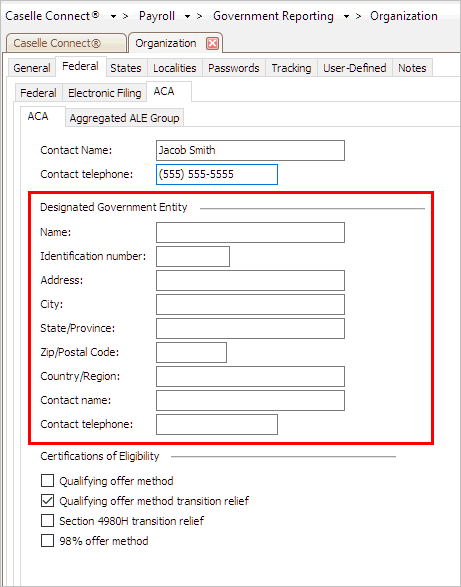
Designated Government Entity in Organization
Which certifications of eligibility apply to your organization?
Select the corresponding checkbox to show certifications of eligibility for Qualifying Offer Method, Qualifying Offer Method Transition Relief, Section 4980H Transaction Relief, 98% Offer Method. See www.irs.gov for additional information.

Certifications of Eligibility in Organization
6. Enter the Aggregated ALE Group information.
“Companies with a common owner or that are otherwise related under certain rules of section 414 of the Internal Revenue Code are generally combined and treated as a single employer for determining ALE status” (www.irs.gov). See IRS publication 6056 for more information.
Why do I need to update employee information in Payroll? The changes that you make to employee information in the ACA Reporting module will only be saved in the ACA Reporting module. Connect will not update the changes that you make to the employee’s record in the ACA Reporting module to the employee’s record in Payroll.
Is your employer part of an ALE Group?
No, my employer is NOT part of an ALE Group. Do not fill in the fields on the Aggregated ALE Group subtab.
Yes, my employer is part of an ALE Group. Use the options on the Aggregated ALE Group to add each employer who is part of the ALE Group to the Aggregated ALE Group list.

Add a New Aggregated ALE Members button in Organization
The ACA contact information and default settings are set up. The next step is to review the ACA information on each employee record to make sure it’s correct.
1. Open Connect Payroll > W-2 and 1099 Reporting > ACA Employees.
2. Review the employee’s information.
Check the ACA information on each employee’s record. You need to make sure the ACA information is correct and accurate. This is the information that will be transmitted to the IRS in the electronic file.
You should pay special attention to these fields:
Origin of Policy
SHOP Identifier
Offer and Coverage
Is the employee information is complete and accurate?
Yes, the employee information is complete and accurate. Press Next (F3) to review the next employee record.
No, the employee information is not correct. Use the form to enter the correct information. You’ll need to update the employee’s information in Payroll to match the corrected information later. Press Next (F3) to review the next employee record.
When you’re finished reviewing the ACA information on each employee, you’re ready to create the communications test file.
1. Open Connect Payroll > W-2 and 1099 Reporting > Create Electronic ACA File.
2. Enter the Tax Year.
This is the tax year with the ACA information to file with the IRS.
3. Enter the ACA Form.
For assistance selecting a form type, follow the instructions on the www.irs.gov website for employers.
4. Enter the File Path.
This is the drive and folder where you want to save the ACA electronic file.
5. Enter the ACA Transmitter Control Code (TCC).
This is the TCC the IRS sent to you. If you need a TCC, see Applying for a Transmitter Control Code (TCC).
6. Select Test as the Transmission Type.
7. Select the Report option.
Use this option to create the electronic ACA file, report, or both the electronic ACA file and report.
What do you want to do?
I want to create the electronic ACA file BUT I don’t want to print a report. Use the Report menu to select No Report.
I want to create the electronic ACA file AND print the contents of the electronic ACA file as a report. Use the Report menu to select Report.
I want to print the contents of the electronic ACA file; I don’t want to create the electronic ACA file. Use the Report menu to select Report Only.
8. Set up the checkbox titled Mark This as the Authoritative Transmittal.
Did you select an Certifications of Eligibility?
Yes, I selected Certifications of Eligibility (Qualifying Offer Method, Qualifying Offer Method Transition Relief, Section 4980H Transaction Relief, or 98% Offer Method). Click to select the checkbox titled Mark This as the Authoritative Transmittal.
No, I did not select any Certifications of Eligibility. Do not select the checkbox titled Mark This as the Authoritative Transmittal.
Did you set up an Aggregated ALE Group?
Yes, I set up an Aggregated ALE Group and added group members. Click to select the checkbox titled Mark This as the Authoritative Transmittal.
No, I did not set up an Aggregated ALE Group. Do not select the checkbox titled Mark This as the Authoritative Transmittal.
9. Click GO (CTRL+G).
Connect creates the electronic ACA test file and an error log if errors exist. The electronic ACA test file includes two parts: (1) the manifest file includes the employer and software information and (2) the request file includes information for each reported employee.
What is AATS? AATS stands for Affordable Care Act Assurance Testing System.
Is there an error log?
Yes, there’s an error log. Fix the errors listed in the log file. Use the log file (saved in the same directory as the electronic ACA test file) to locate errors in the electronic ACA test file. You can use any text editor, NotePad, Word, etc., to open the .log file. And then return to 3A. Setting up ACA options in Payroll to create a new ACA test file.
Important! Do not continue to the next step until the electronic ACA test file is error free. If you need assistance fixing an error, call customer support at (801) 243-8275.
Do you need help fixing the errors listed in the .log file? Don’t hesitate ask customer support for assistance at (800) 243-8275. The IRS generates the error log and we can help you decipher them.
No, there’s no error log. Continue to 3D. Submitting a Communications Test File to the IRS.
1. Use Internet Explorer 8 or higher to navigate to https://www.irs.gov/for-Tax-Pros/Software-Developers/Information-Returns/Affordable-Care-Act-Information-Return-AIR-Program
2. Use the navigation menu on the right to find the section titled UI Channel Link.

ACA Test File in IRS AIR Website
3. Click the link titled AIR UI Channel Login - AATS (Testing).
A confirmation dialog box displays.
4. Click Leave IRS Site to continue.
A login page displays.
5. Log in to the website.
Enter your user name and password.
This is the same user name and password that you use to log in to the IRS e-Services website.

Login in IRS AIR Website
Click Login.
The Select Organization page displays.
6. Select your organization.

Select Organization page in IRS AIR Website
Choose the name of your organization.
This is the name of the organization that will submit the electronic ACA test file to the IRS.
Click Submit Selected Organization.
The Select AATS Version page displays.
7. Select the AATS Version.
Choose AATS YYYY for the current year and then click Submit Selected Version.
Example: AATS 2016
The Affordable Care Act Information Returns page displays.
8. Click Option A - Upload ACA Forms.
The ACA Transmission File Upload page displays.
9. Set up the ACA Transmission File Upload page.
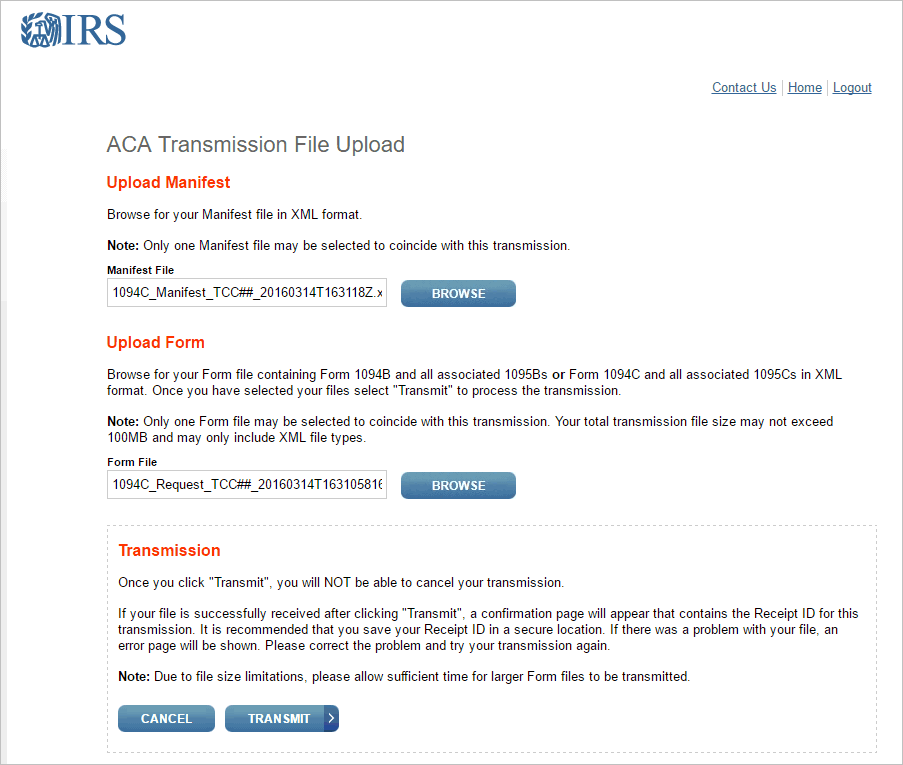
ACA Transmission File Upload in IRS AIR Website
(A) Select the Manifest File.
Click Browse and then navigate to the manifest file. The manifest file is located in the same directory as the electronic ACA test file. The file name will include “Manifest”.

Manifest File in IRS AIR Website
(B) Select the Form File.
Click Browse and then navigate to the request file. The request file is located in the same directory as the electronic ACA test file. The file name will include “Request”.
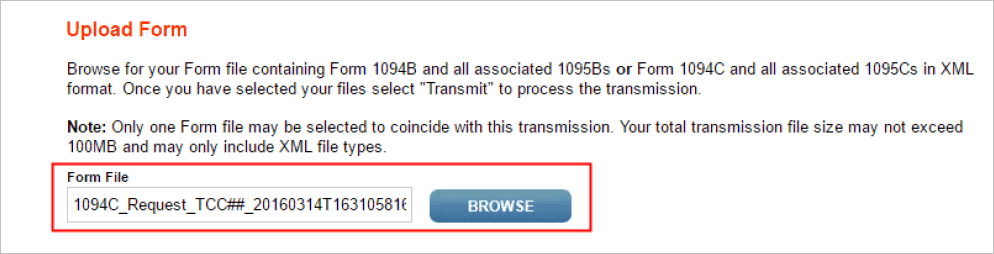
Form File in IRS AIR Website
(C) Click Transmit.
Connect sends the ACA Transmission file to the IRS. You cannot cancel the transmission after you click Transmit.
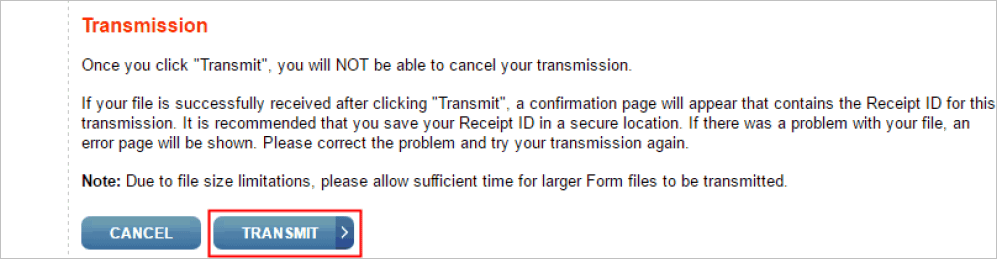
Transmission page in IRS AIR Website
The Transmission Confirmation page displays.
10. Print the Transmission Confirmation page.
Why do I need to print the Transmission Confirmation page? You will need the transmission confirmation number and receipt ID in case you need to begin the submission process again OR contact the IRS for assistance.

Transmission Confirmation page in IRS AIR Website
Important! Print the Transmission Confirmation page for your records. You’ll need the transmission confirmation number to verify file submission. And you will need the Receipt ID when you contact the IRS for approval.
11. Click the link titled Home.
DO NOT CLICK LOGOUT. If you log out, you need to log in to verify the status of the file submission.
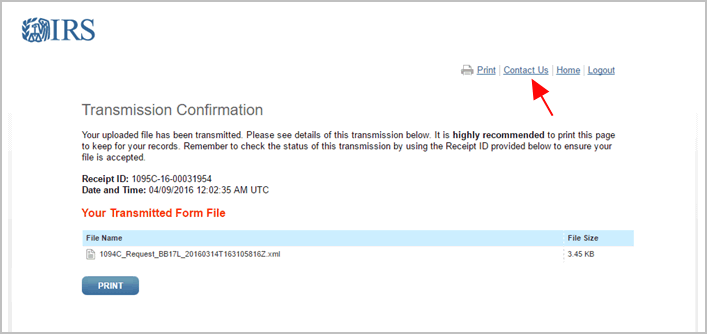
Transmission Confirmation page in IRS AIR Website
The Affordable Care Act Information Returns page displays.
12. Check the Transmission Status.
Click Option B - Check Transmission Status.
The Transmission Status Record page displays.
Enter your ACA Transmitter Control Code (TCC) number and the Receipt ID from the transmission confirmation page (see step 10).
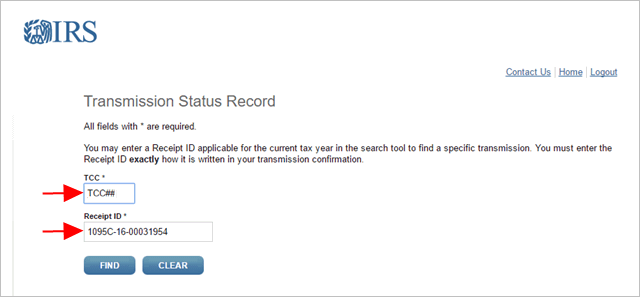
TCC and Receipt ID fields on Transmission Status Record page
Click Find.

Find button on Transmission Status Record page
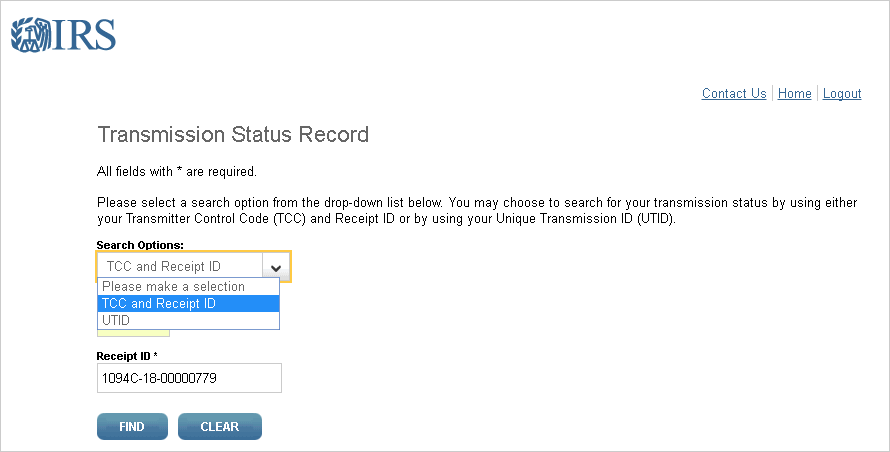
Search Options on Transmission Status Record page
The Transmission Status Details page displays.
How long will it take the IRS to process my test file? You should allow approximately 30 minutes to process the test file. Organizations submitting larger files may require more time.
13. Check the Transmission Status Details.
Use the Transmission Status Details page to find out if the transmission was accepted or rejected.
What is the status listed on the Transmission Status Details page?
The transmission status is Rejected. Click Download to save the acknowledgement file to the Downloads folder. The error file name begins with “ACK...” and may be helpful to understand why the electronic ACA test file was rejected and what you can do to fix it.
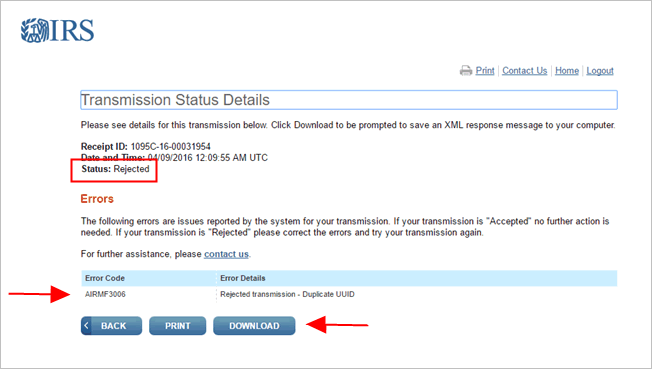
Rejected Transmission Status Error Codes
What is an Acknowledgment report? The Acknowledgment report lists the errors found in the electronic ACA test file that was sent to the IRS. If you need help, go to www.irs.gov or contact Caselle support at (800)243-8275 for assistance.
The transmission status is Accepted. First, click the link titled Contact Us and then write down the telephone number for the IRS Help Desk.
Contact Us link on Transmission Confirmation page
Before you call the IRS Help Desk, gather this information:
- ACA TCC number,
- Your company name as it appears on the TCC application,
- Your name,
- Receipt ID.
Next, call the IRS to switch your TCC status from test to production.
When you call the IRS, the automated Help Desk operator will ask you which language you prefer. Then, the Help Desk will ask you for a topic. Choose Option 3 for ACA file submissions.
You will need to provide the Help Desk with the ACA TCC number, your company name is it appears on the TCC application, your name, and the receipt ID (see the transmission confirmation page that you printed in step 10).
The Help Desk will switch your TCC status to production.
Now, you’re ready to file the ACA electronically using AIR.
Important! Do not complete this step until the electronic ACA test file is accepted AND the IRS Help Desk has switched your TCC status to production.
1. Use Internet Explorer 8 or higher to navigate to www.irs.gov/for-Tax-Pros/Software-Developers/Information-Returns/Affordable-Care-Act-Information-Return-AIR-Program
2. Use the navigation menu on the right to find the section titled UI Channel Link.
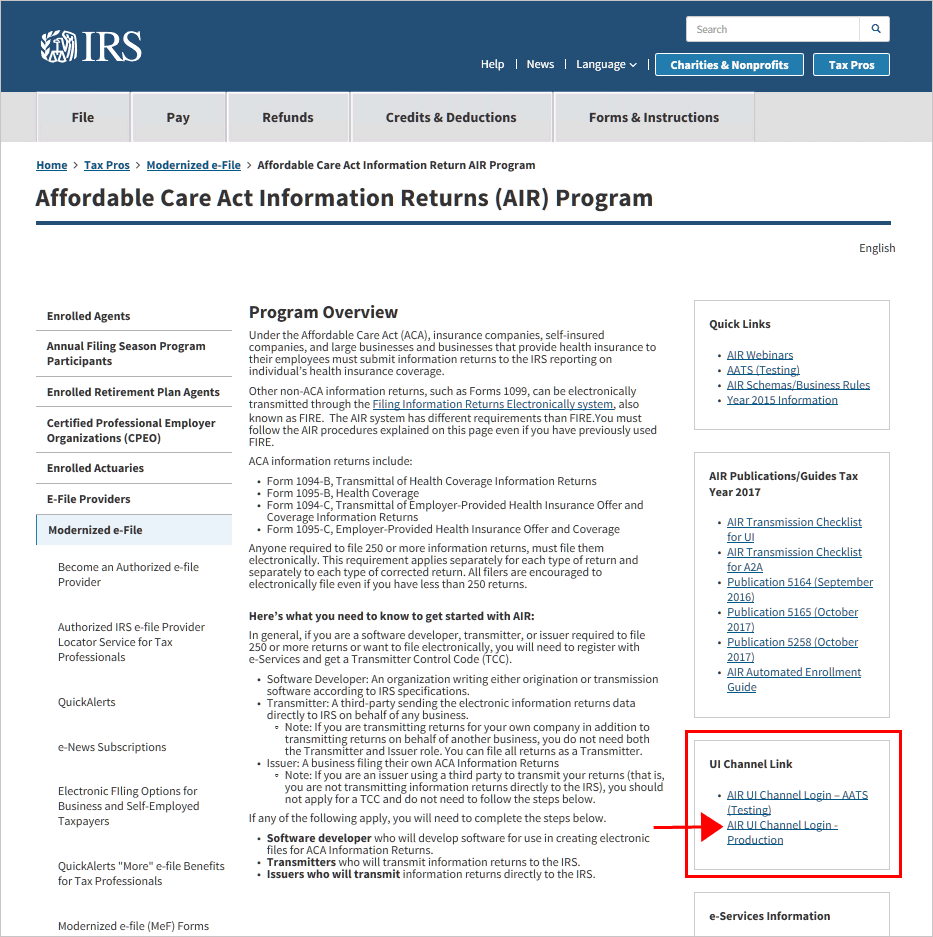
UI Channel Link
3. Click the link titled AIR UI Channel Login - Production.
The link is located in the menu on the right, near the bottom of the page. You may need to scroll down to find it.
A confirmation dialog box displays.
4. Follow the instructions on the screen to submit the ACA file.
AIR will process each submission and provide a status report with a detailed acknowledgment for the transmitter.
5. Retain a copy of information returns for at least three (3) years from the report due date.
You have filed the electronic ACA file with the IRS. You’re done.
AIR recommends clearing the browser history and use IE8.
The IRS e-Services is not supported on other website browsers (Mozilla Firefox, Google Chrome, Apple Safari, etc.). Use the Search tool on the Windows Start screen to type in “Internet Explorer”.
Updated 25Sep2017