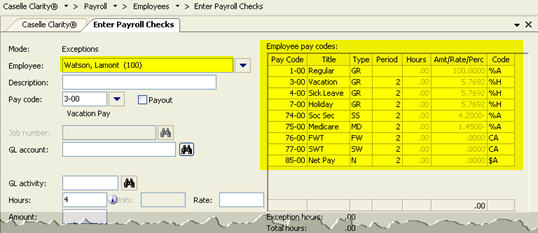
Enter exceptions to payroll checks.
A payroll check is a written document that directs a bank to pay money as instructed. Use Enter Payroll Checks to enter exceptions to the pay code amounts that the routine will use to generate the employee's payroll check. An exception occurs when an amount or quantity on an employee's payroll check needs to be updated with a different amount or quantity. Examples of exceptions include leave hours, sick leave, or compensation time.
Use Enter Payroll Checks to:
Enter exceptions
Run "What if?" payroll check scenarios. See the help topic titled How do I run a "what if" payroll check scenario?
Compute withholding and deductions for a manual check. See the help topic titled How do I calculate withholding and deductions on a manual check?
1. Open Connect Payroll > Employees > Enter Payroll Checks.
The Enter Payroll Checks Options appears.
2. Fill in the check issue date and journal code and then click OK.
The Enter Payroll Checks form appears.
3. Click to select the field titled Employee.
This is the employee's name or number.
4. Press Enter to display the employee's pay codes.
5. Click to select the field titled Pay Code.
6. Enter the pay code on the exception. Press Enter.
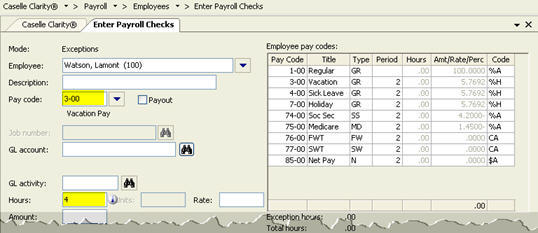
7. Enter the exception hours or amount.
If the pay code calculates based on an amount: Use the Amount field to enter the dollar amount. Press Enter.
If the pay code calculates based on hours: Use the Hours field to enter the number of hours. Press Enter.
The exception is recorded in the Employee Pay Codes grid.
8. Do you have another exception for the current employee?
Yes, I need to enter another exception. Enter the pay code and amount/hours for the next exception.
No, I am done entering exceptions for the current employee. Press Enter again to save the transaction and move on to the next employee.
9. After you finish entering exceptions, click GO (CTRL+G) to compute the employee's payroll check.
The payroll check is calculated.