
Reports
Print the Benefits Register to see if the benefit amounts match the employer's contribution.
In this Topic Hide
Printing Benefits Register - Summary
Printing Benefits Register - Detail
Summarize pay code by GL account
Separate entries will be created on the report for employees with multiple checks. 2020.11 or later.
Use the Benefits Register – Summary to print the employee number, name, and Social Security number. Adding a Benefit Amount column on the Columns tab will print one column for each active pay code. The column will contain the corresponding benefit amounts for each pay code.
Do this...
1. Open. Connect Payroll > Reports > Benefits Register.
2. Select Benefits Register - Summary by Name/Number [Caselle Master] as the Definition.
You can use the Caselle Master to print the summary by name or number.
Definition
3. Select the Report Dates.
How do I change the report date range?
How do I change the date type?
How do I change the date type?
How do I prompt a user to enter a date?
4. Set up the report options.
Summarize pay code by GL account
Suppress benefit amount columns with no transactions
5. Set up the Selection Criteria, Report Order, and Report Sections.
How do I set up the Selection Criteria?
How do I set up the Report Order?
How do I set up the Report Sections?
6. Click Print (CTRL+P).
The Benefits Register - Summary prints.
Updated 09Jul2018
Print this report to
Verify benefit pay codes and transactions.
Ensure the Accounts Payable invoice for benefit amounts matches the employer's contribution.
Check for GL accounts with zero amounts.
Note: The report will subtotal amounts by fund at the end of the report.
Do this...
1. Open. Connect Payroll > Reports > Benefits Register.
2. Select Benefits Register - Detail by Department/Name/Number/Number with GL Activity [Caselle Master] as the Definition.
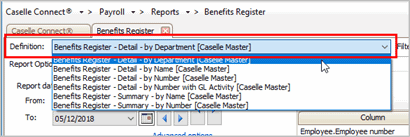
Definition
3. Select the Report Dates.
How do I change the report date range?
How do I change the date type?
How do I change the date type?
How do I prompt a user to enter a date?
4. Set up the report options.
Summarize pay code by GL account
Suppress benefit amount columns with no transactions
5. Set up the Selection Criteria, Report Order, and Report Sections.
How do I set up the Selection Criteria?
How do I set up the Report Order?
How do I set up the Report Sections?
6. Click Print (CTRL+P).
The Benefits Register - Summary prints.
Updated 09Jul2018
Use summarize to reduce the pay code detail into a summary balance by GL accounts. When this option is selected, the report will summarize pay code information when two or more lines reference the same pay code, debit account, and credit account.

Summarize pay code by GL account
202005, 2020Mar03
The report will add a column for each benefit pay code. You can use this option to remove the benefit pay code from the report when there aren't any transactions to report.

Suppress benefit amount columns with no transactions
202005, 2020Mar03
Filter the report by pay code. This section shows only benefit-type pay codes. Select a checkbox next to a pay code to include it on the report. To exclude a pay code, remove the checkmark.
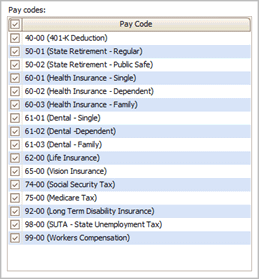
Pay codes
202005, 2020Mar03